1Getting started
This chapter explains what Ueli is, how you obtain access and how the first sign-in works.
1.1 What is Ueli?
Ueli is a Swiss platform that answers questions on the basis of real documents. You select one or more knowledge libraries (for example Swiss federal law or your own contracts), ask a question in normal language — and receive an answer with source citations. If Ueli cannot back a statement with a source, it says so honestly instead of making something up.
The platform consists of several areas (services), between which you navigate via the service switcher:
| Area | Who it is for | What it does |
|---|---|---|
| Chat | Everyone | Questions to the selected knowledge libraries — every answer with source markers and a verdict (chapters 3–5). |
| Knowledge | Everyone | Manage libraries: use the public platform libraries, create your own, upload documents (chapter 7). |
| Case file | Everyone | Collect citations, templates, notes and PDF exports per workspace (chapter 6). |
| Pension | Private individuals | Pension and retirement planner covering all three pillars, with financial calculators (chapter 9). |
| Specialist services | Organisations | Additional modules for document analysis, reports, text and processes — enabled individually (chapter 8). |
Organisation and roles
Every public authority, law firm or company is its own organisation on the platform. All data, documents and chat histories are strictly separated per organisation — members of other organisations never see anything of yours. Private individuals automatically receive a personal area.
Within an organisation, each member has exactly one role:
| Role | In short |
|---|---|
| Member (read) viewer | Reads shared libraries and asks questions in the chat. |
| Member (edit) editor | Additionally maintains content: uploads documents, creates and edits libraries. |
| Organisation admin tenant_admin | Additionally manages members and deletes libraries. |
| Organisation owner tenant_owner | Everything, including assigning roles, plan and organisation settings. |
You will find the complete role matrix in chapter 12. Chapter 11 is aimed exclusively at admins and owners.
1.2 Requesting access
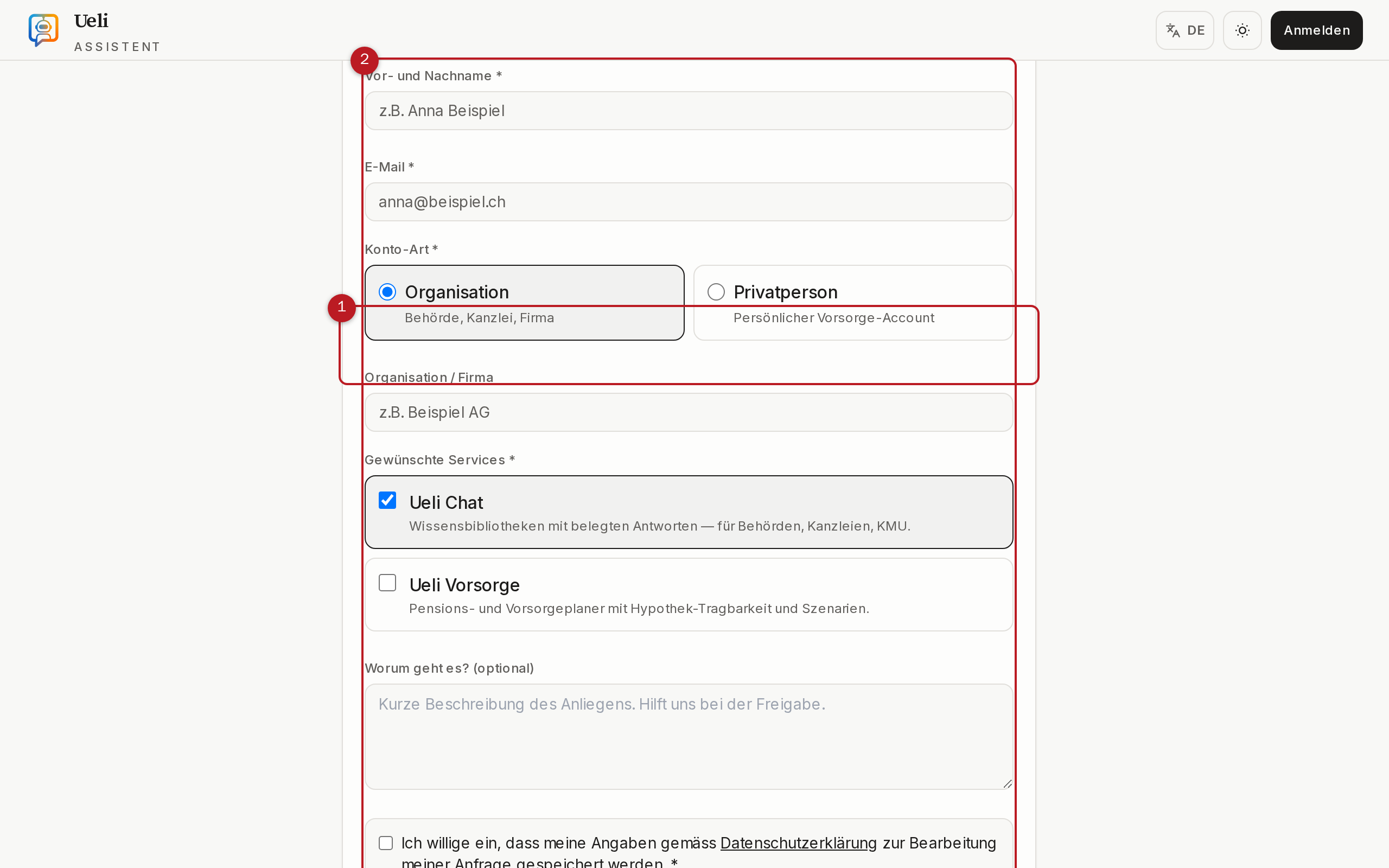
Ueli is in beta operation: there is no self-registration; every account is approved manually. This is how you request access:
- Open the page «Request access to Ueli» at
/zugang. - Enter your first and last name and your email address.
- Choose the account type: Organisation (authority, law firm, company) or Individual (personal pension account).
- Select the desired services (for example Ueli Chat, Ueli Pension) and optionally describe your request briefly — this helps with approval.
- Confirm your consent to data processing and submit the request.
- You will receive a confirmation email (double opt-in). Click the link it contains — it is valid for 7 days.
- The platform operator reviews the request and approves your account. You are informed by email and receive your access credentials.
1.3 Signing in
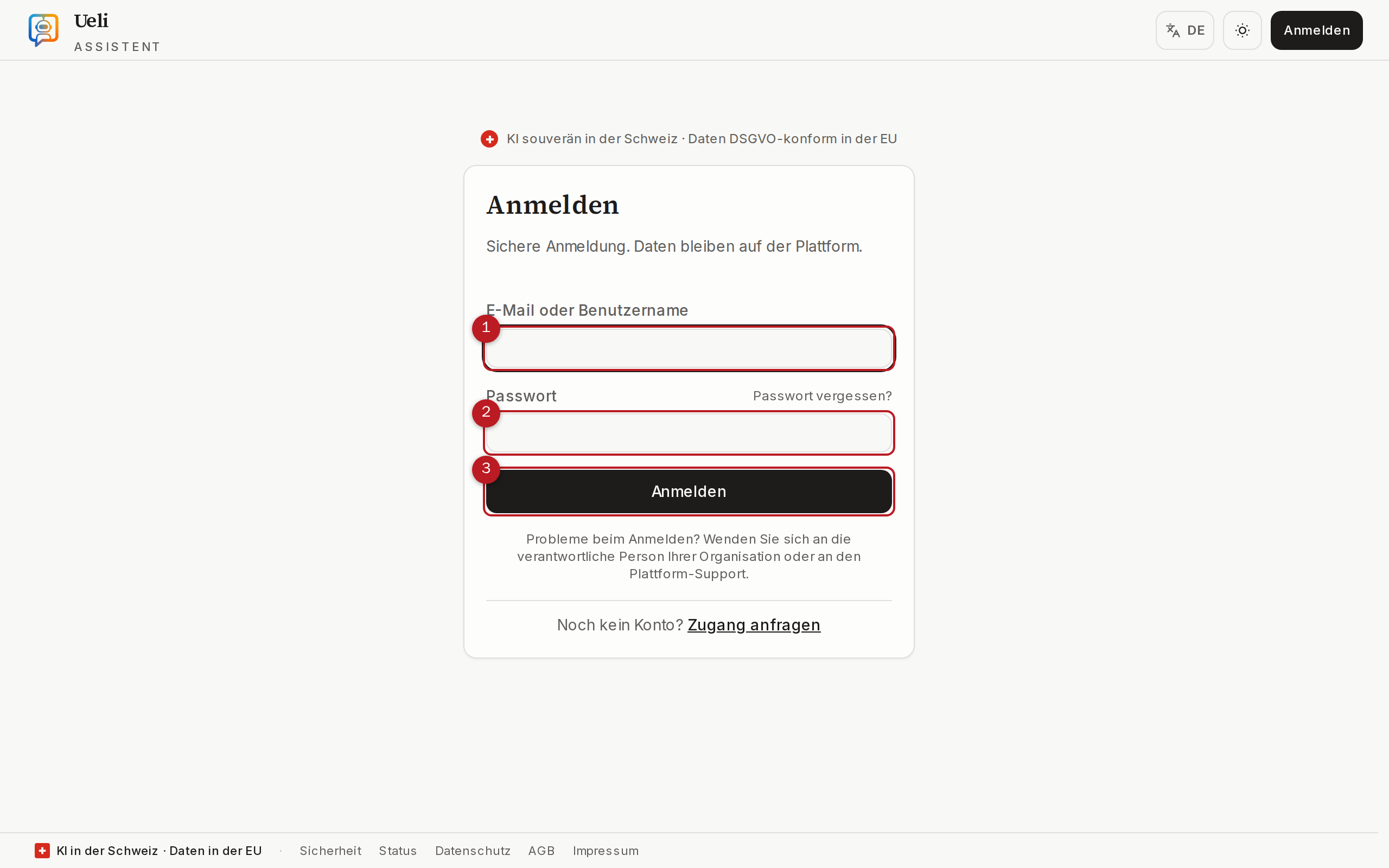
- Open the Ueli address in your browser and click «Sign in».
- Enter your email or username and your password.
- Confirm with Enter or the «Sign in» button. If two-factor authentication is set up, you also provide your second factor.
1.4 The first sign-in (onboarding)
On your first login, Ueli guides you through the setup in three short steps:
- Terms of use — read and accept the terms and conditions and the privacy policy.
- Choose a username — 3–31 characters, only lowercase letters, digits,
_and-. You can also use the username to sign in in future. - Set up two-factor protection — the security console opens in its own window; register an authenticator app or a passkey there and then have the setup verified.
After that, the welcome page greets you with recommended knowledge libraries and sample questions to try — for example «What deadline applies to challenging the termination of an employment relationship?» Clicking a sample question takes you straight to the chat.
1.5 Language and appearance
- Language: The interface is available in German, French, Italian and English. Switch via the account menu or under My account (chapter 10).
- Light/dark: The theme switch toggles between Light, Dark and System. The setting is saved.
2Finding your way around
This chapter gives you an overview of the interface: sidebar, service switcher, mobile navigation, command palette, notifications and help.
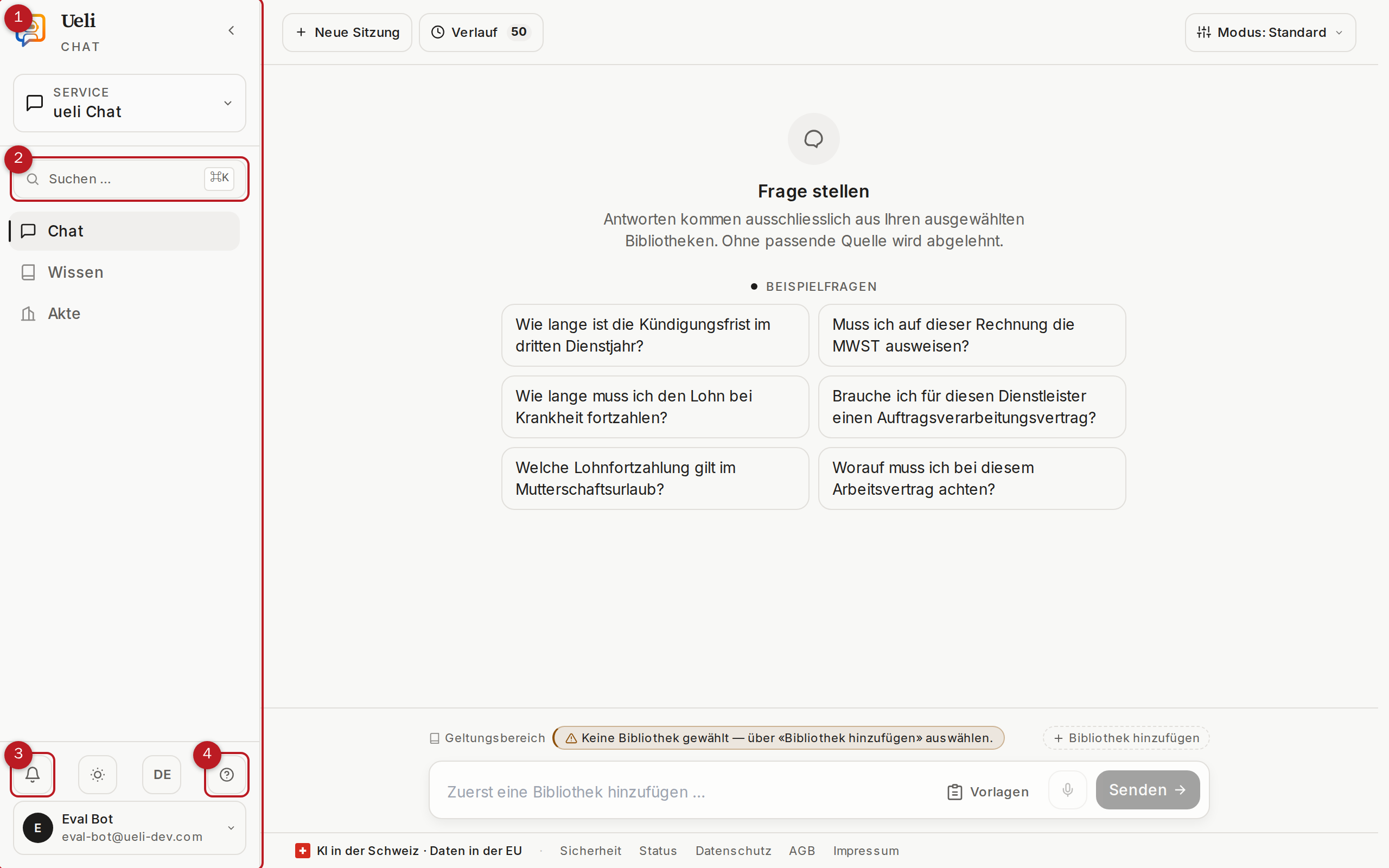
2.1 Sidebar and service switcher
On the left is the main navigation (sidebar). It shows the pages of the active area — in the chat area, for example, Chat, Knowledge, Case file — plus, at the bottom, access to Organisation, Account and Help. The sidebar can be collapsed to give the content more room.
Via «Switch area» (the service switcher) you jump between your enabled Ueli areas, for example from chat to pension. Only areas that are active for your account or your organisation appear.
2.2 Mobile navigation
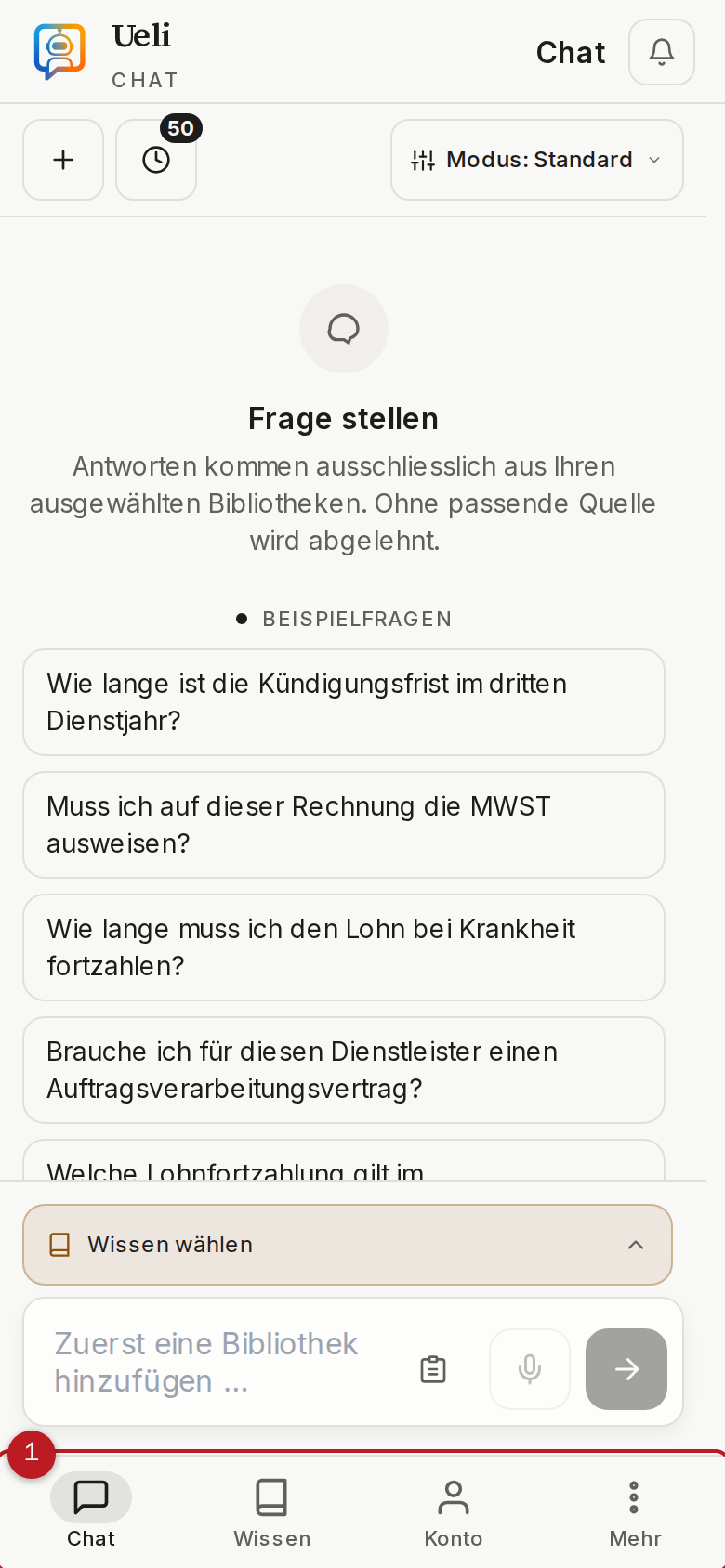
On smartphones and narrow windows, the sidebar gives way to a tab bar at the bottom edge of the screen. It contains the most important destinations of the active area; everything else sits behind the menu icon. All features in this manual are also available on mobile.
2.3 Command palette (quick search)
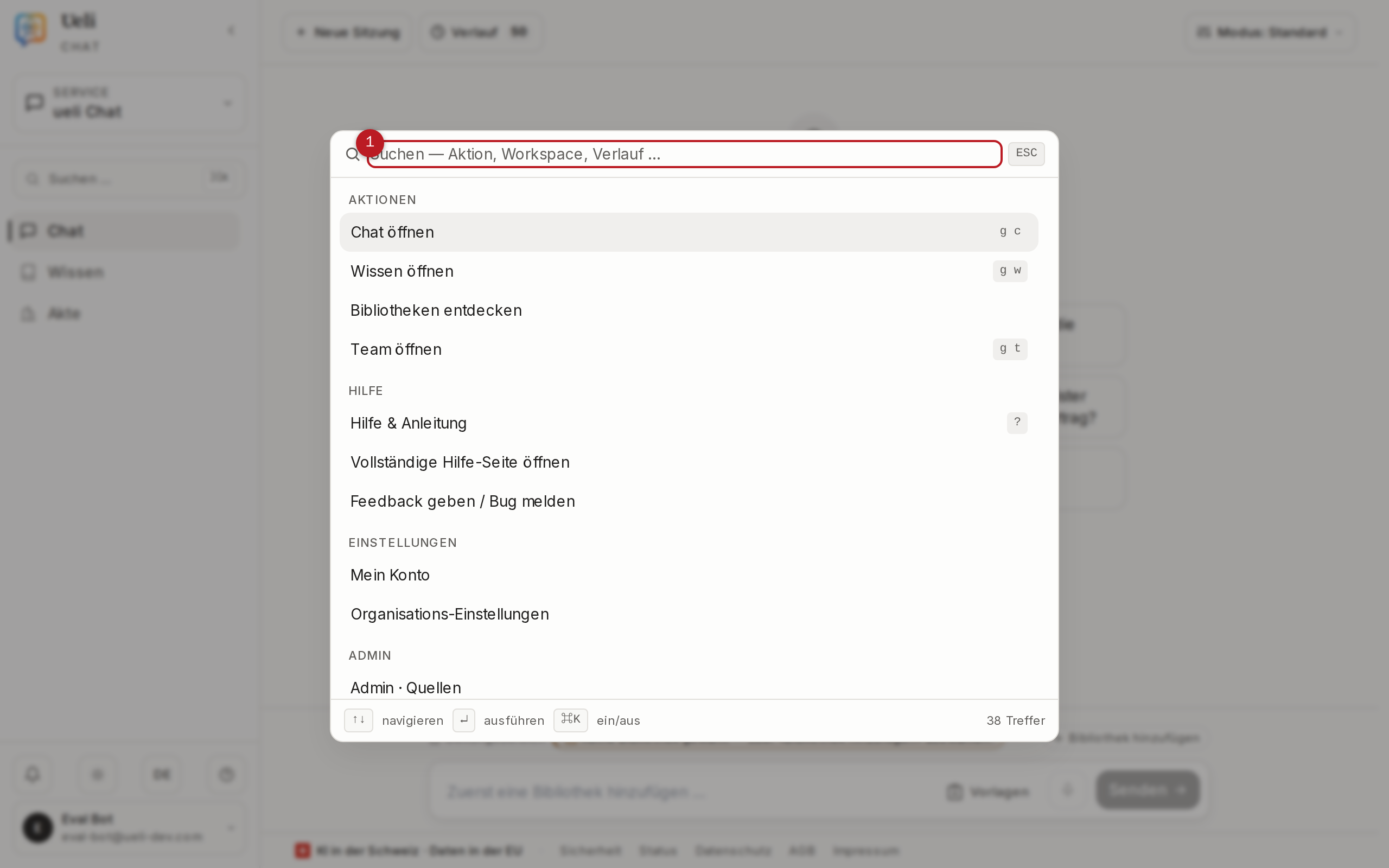
With Ctrl+K (Windows/Linux) or Cmd+K (Mac) you open the command palette on any page. Start typing to find pages, workspaces or previous sessions, and jump straight there with Enter. This is usually the fastest way through the platform.
2.4 Notifications
The bell icon in the header opens the notifications. This is where notices about processed documents appear (for example «One document is ready») as well as other events. With «Mark all read» you mark all entries as read; with «Clear all» you tidy up the list.
2.5 Help panel and in-app help
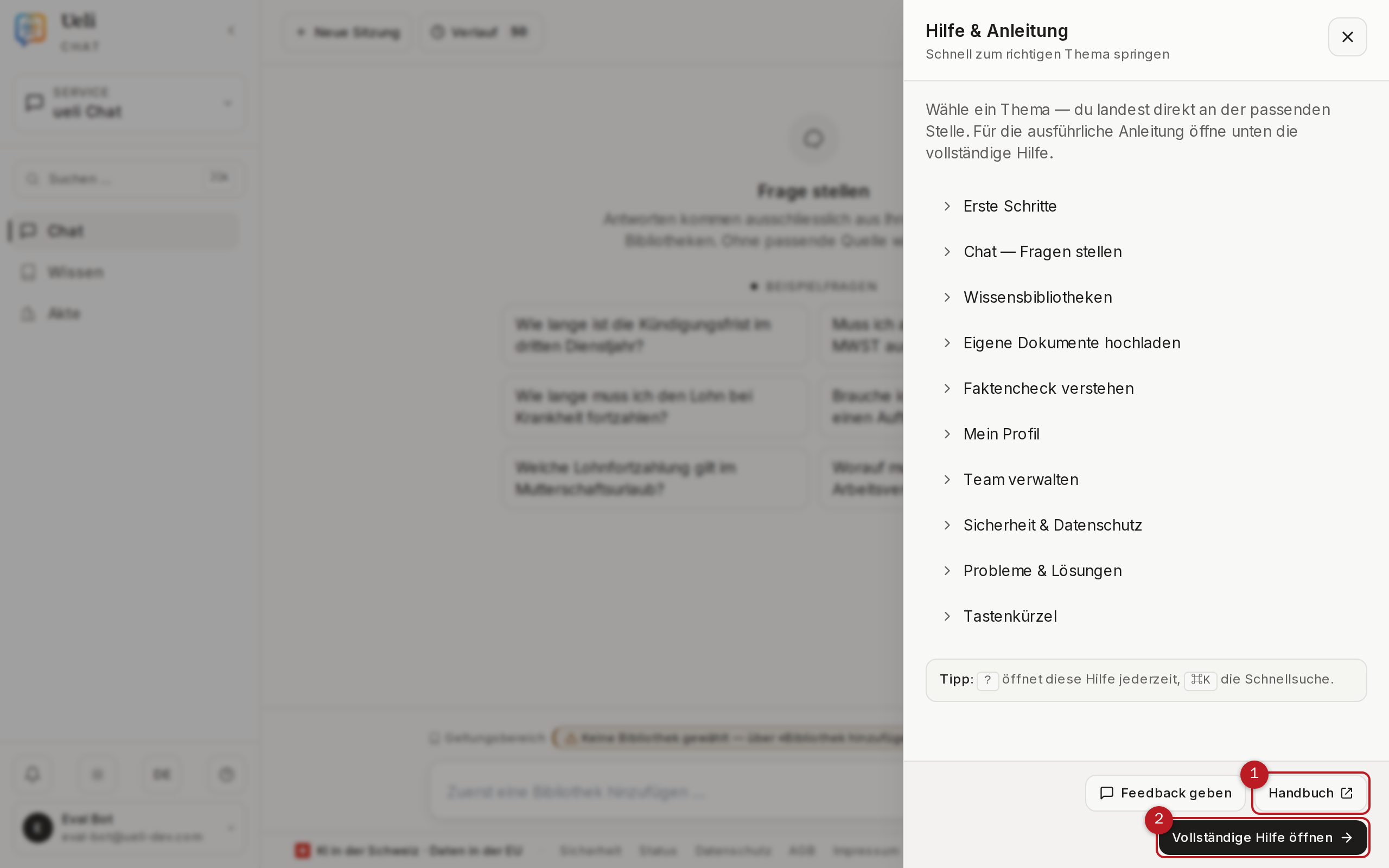
- Help panel: Click the ? icon in the header (or press the ? key) to open the context-sensitive help as a side panel — without leaving the current page.
- Help & guide: At
/hilfeyou find the complete in-app help with a search function — written for people without a technical background. - Status page: At
/statusyou can see the platform’s current operational status — helpful if something seems unreachable. - Feedback: Use the feedback button to report questions and errors directly from the app; screenshots can be attached via file picker, drag and drop or Ctrl/Cmd+V.
3Asking questions — the chat
The chat is the heart of Ueli. Answers come exclusively from the libraries you have added to the scope — not from the open internet and not from general prior knowledge. This chapter shows how to choose the scope, ask questions and use the answer modes.
3.1 Choosing the scope
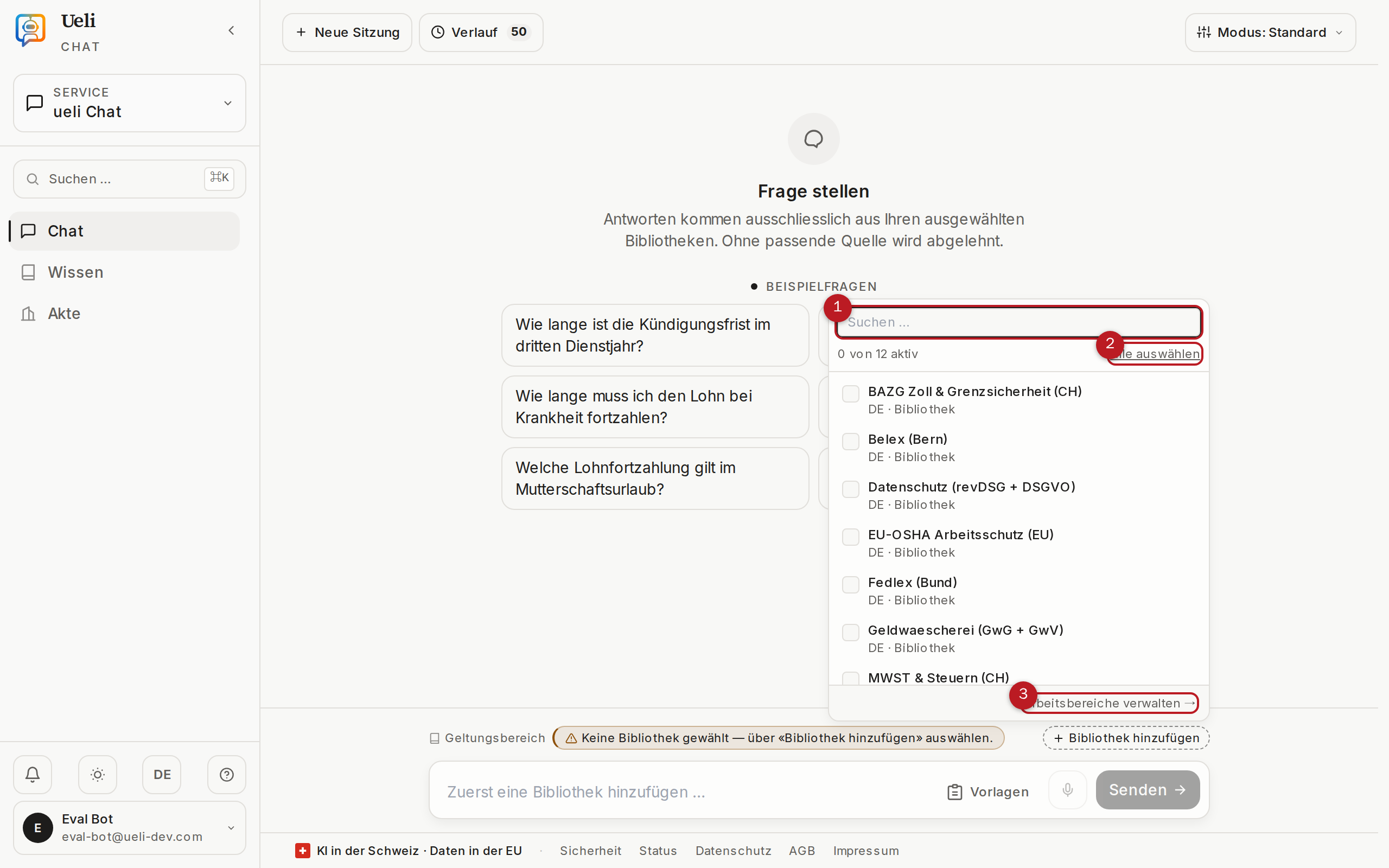
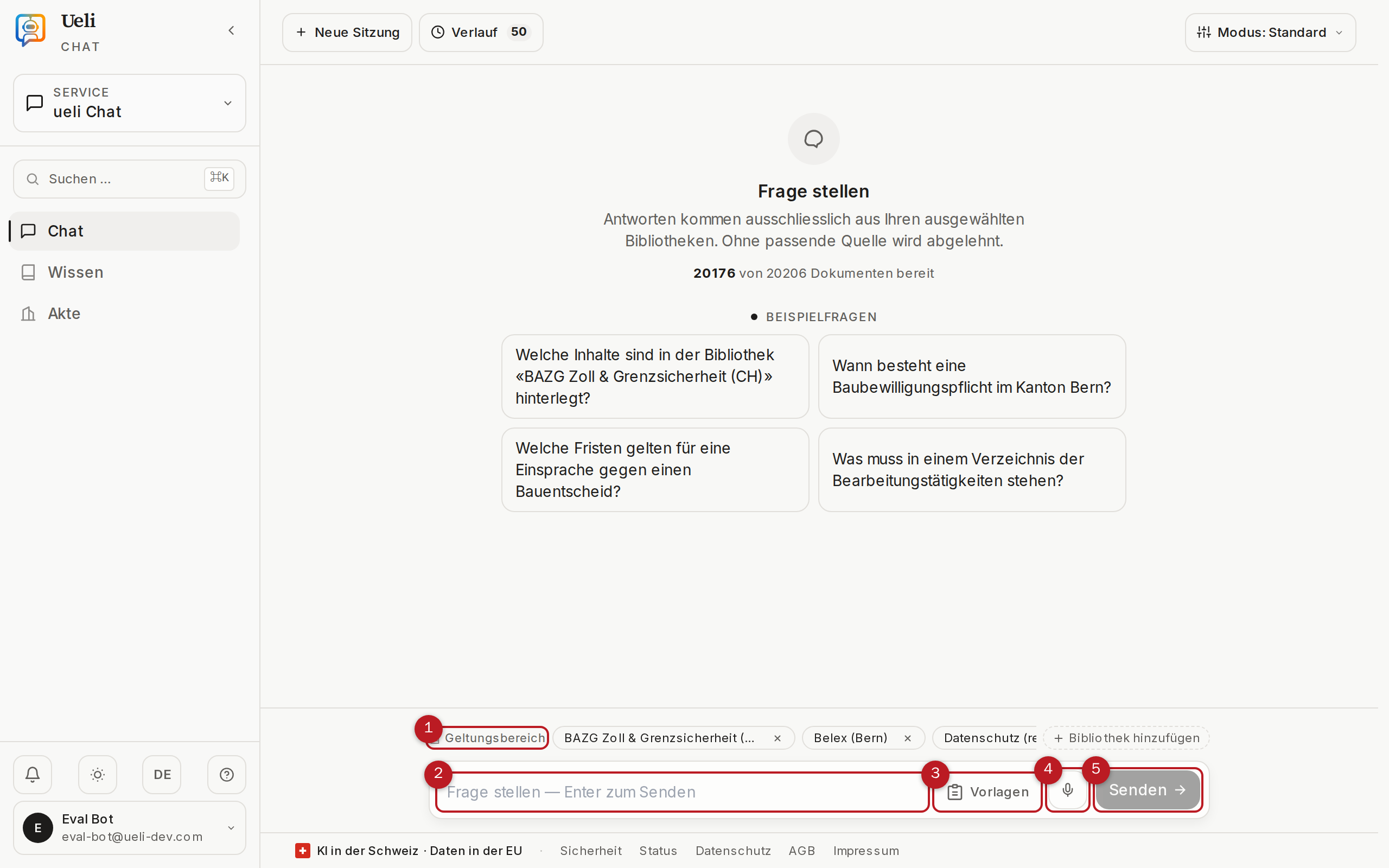
The scope is the set of libraries in which Ueli searches for your question. It is displayed as a chip bar above the input field.
- Click «Add library». The Workspaces dialog opens.
- Select one or more libraries — by clicking, via the search field or with «Select all».
- Close the dialog with Esc. The selected libraries appear as chips in the scope; the × on a chip removes a library again.
On a smartphone, a tappable row summarises the scope (for example “13 libraries”). Tapping it opens the library selection as a sheet sliding up from the bottom, with search and “Select all”.
3.2 Asking a question
- Type your question into the input field at the bottom — phrased quite normally, as you would write to a specialist.
- Send with Enter or the «Send» button. Create a new line with Shift+Enter.
- The answer appears piece by piece — you can already read while Ueli is still writing. At the end come the verdict, source coverage and source list (chapter 4).
3.3 Answer modes
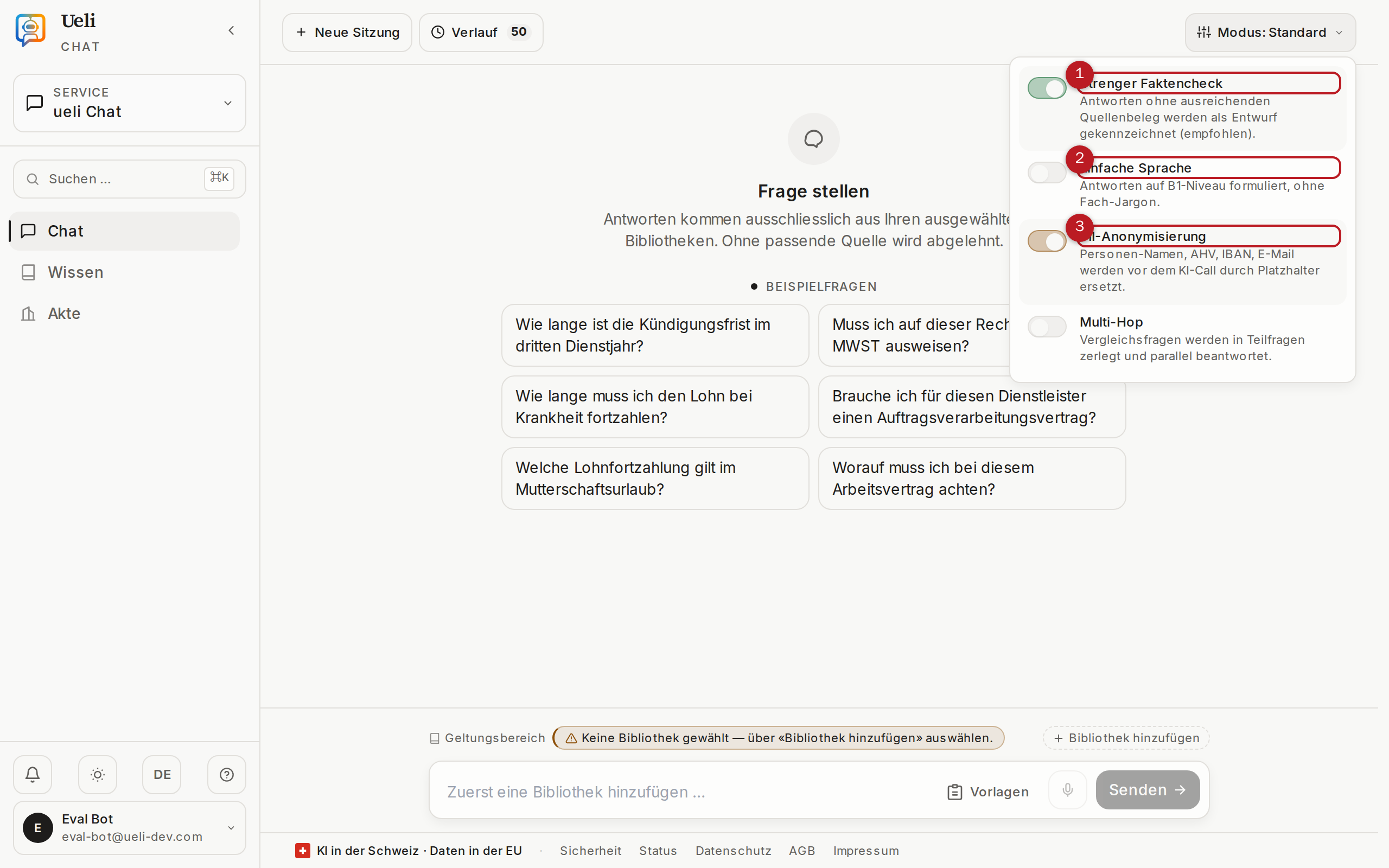
Via the «Mode: …» button above the input field you open «Adjust answer modes». The modes control how strictly and in what form Ueli answers:
| Mode | Default | Effect |
|---|---|---|
| Strict fact check | On | Every answer goes through a second, independent check against the sources. Answers without sufficient source evidence are rejected or marked as a draft (recommended). |
| Plain language | Off | Answers are phrased at B1 level, without jargon — ideal for communicating with citizens. |
| PII anonymization | On | Personal names, AHV numbers, IBANs and email addresses in your question are replaced with placeholders before processing. |
| Multi-hop | Off | Comparison and multi-step questions are automatically split into sub-questions and answered in parallel. |
| Loose | Off | Answer without strict source binding — unverified and marked with a warning badge accordingly. Only suitable for non-binding brainstorming, not for reliable information. |
3.4 Templates
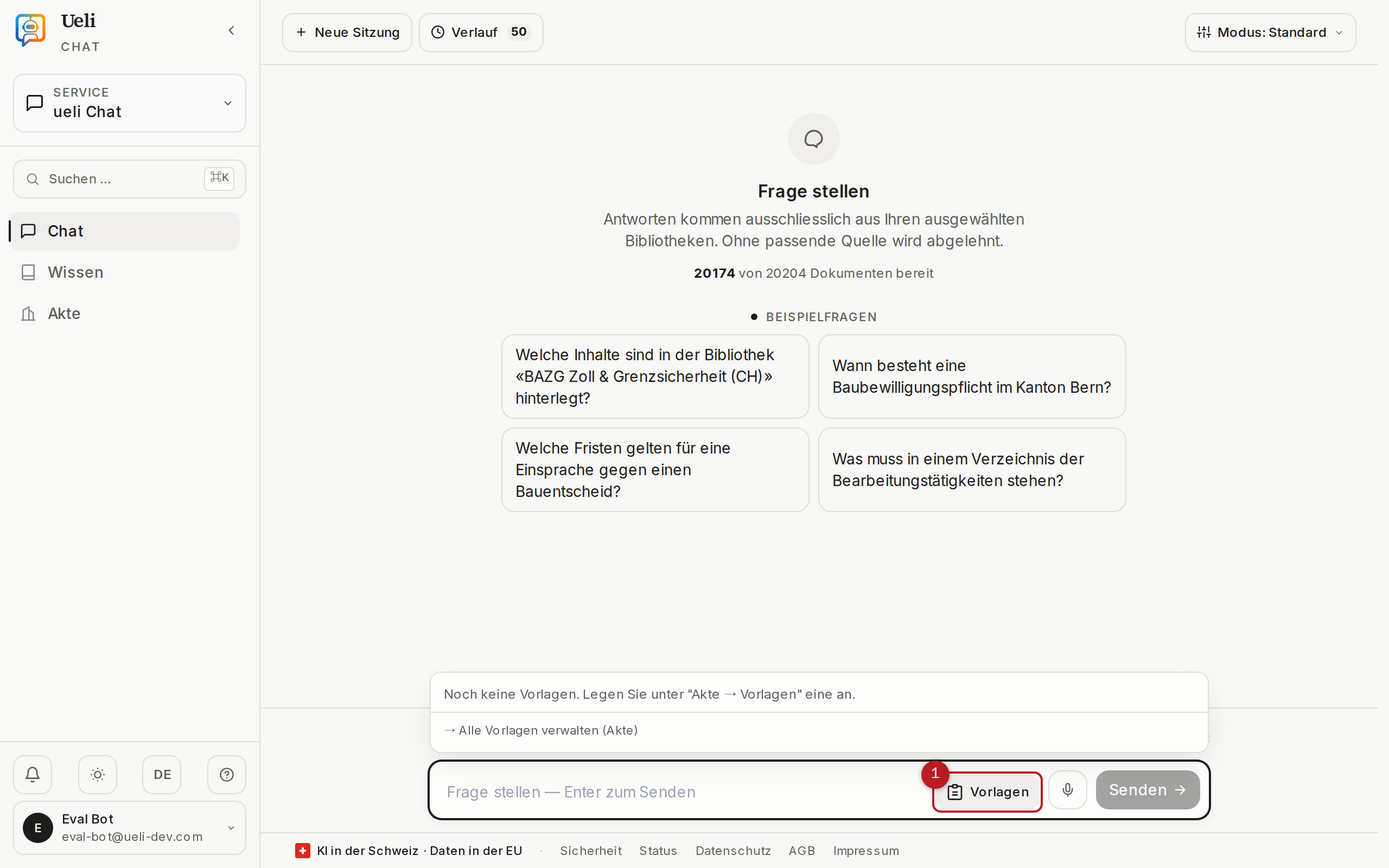
Templates are reusable question building blocks with placeholders — practical for questions your team asks regularly (for example a standardised deadline check). You open the templates via the template icon in the input area or by typing / at the start of the line. When inserting, Ueli fills in the placeholders in a dialog; empty fields are shown before sending.
You create templates in the case file on the Templates tab and manage them there (chapter 6). Organisation-wide templates can only be created by admins.
3.5 Dictation
Via the microphone icon «Dictate by voice» you speak your question instead of typing it. Speech recognition runs in your browser; if it does not support dictation, Ueli shows a notice (current versions of Chrome or Edge work most reliably). The recognised text lands in the input field and can be edited before sending.
4Understanding answers
Every answer from Ueli carries verification marks that let you judge its reliability. This chapter explains the verdict, source markers and the source viewer — and what it means when Ueli declines to answer.
4.1 The verdict: «Grounded» and «Partially grounded»
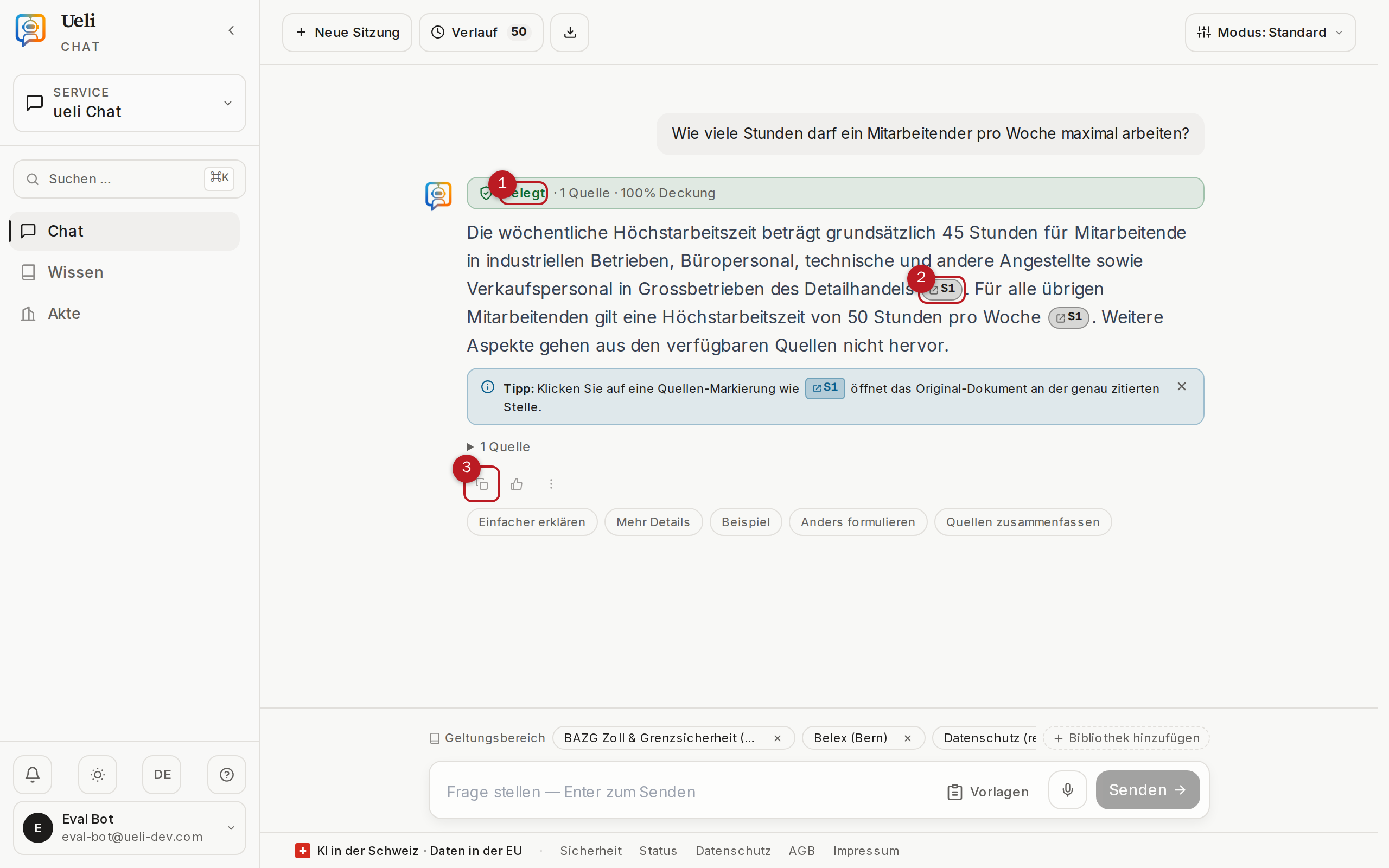
Below every answer stands the verdict with the source coverage in percent, for example «Grounded · 3 sources · 96% coverage»:
| Verdict | Meaning |
|---|---|
| Grounded | Practically every statement in the answer is traced to a specific passage in a document. |
| Partially grounded | Some of the statements are grounded; others could not be clearly traced to a source. Check the ungrounded passages particularly critically. |
| No grounded answer | Ueli declines to answer because it cannot be grounded in the selected libraries (section 4.4). |
The source coverage indicates what share of the answer’s sentences carries a valid source citation. In addition, the strict fact check (chapter 3.3) checks the finished answer once more, independently, against the sources — if it fails the check, it is rejected instead of delivered.
4.2 Source markers [S1], [S2], …
Every grounded statement carries a source marker such as [S1] or [S2]. The marker points to the exact document passage the information comes from. At the end of the answer, the Sources section lists all cited passages with their document titles.
4.3 The source viewer
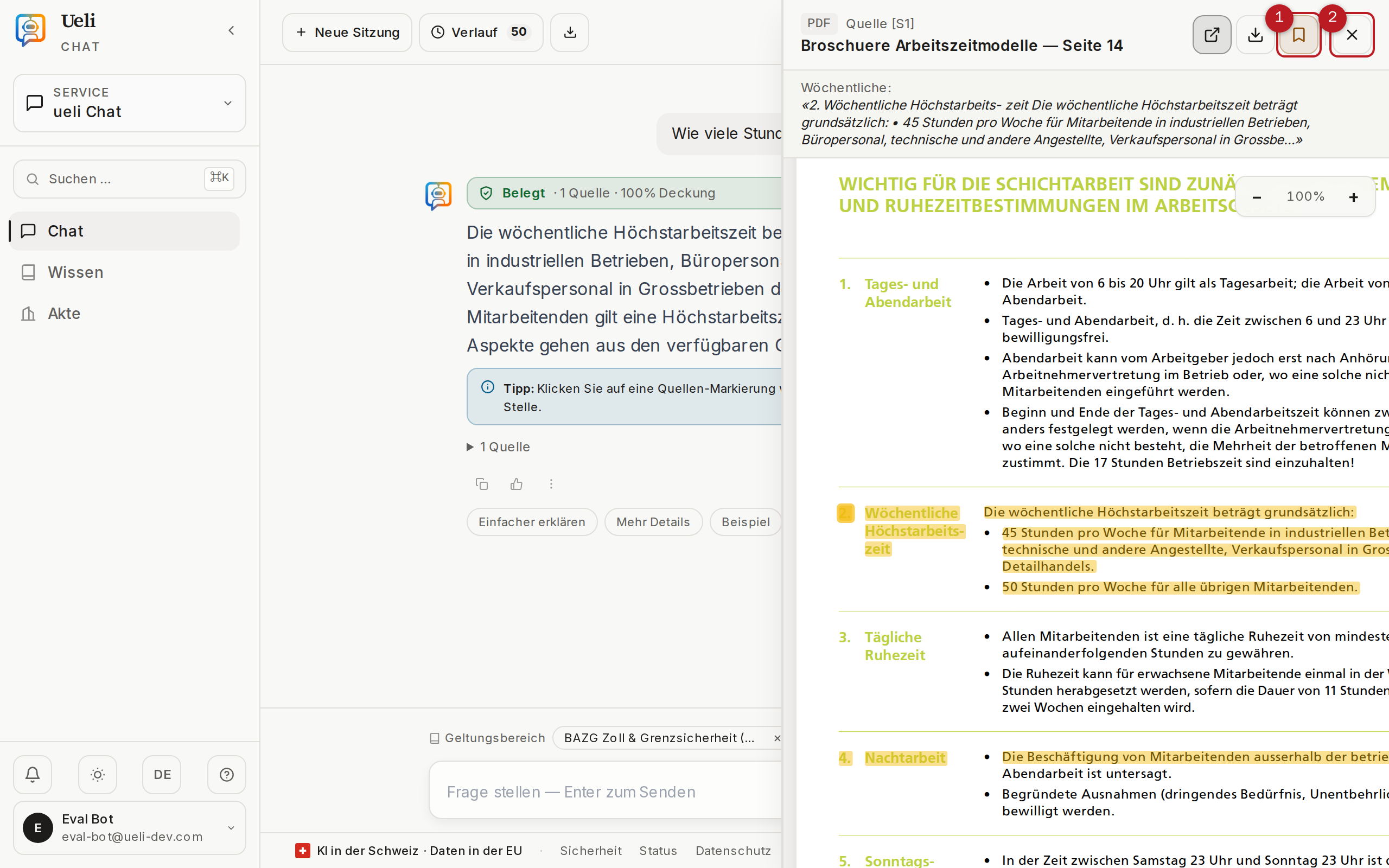
Clicking a source marker opens the source viewer: the original document, opened at the cited passage. The passage is highlighted in yellow; for PDFs the viewer jumps automatically to the right page and position.
In the source viewer you can:
- Browse and zoom — with the Zoom in, Zoom out and Reset zoom buttons.
- «Open original» or «Download original» — view or save the unmodified source document; for imported web pages the original address opens.
- «Add to file» — save the source as a citation in the workspace’s case file (chapter 6). This is how you build a traceable collection of evidence.
- Take notes — select text in the source and save a comment on it in the note block.
- Close the viewer with Esc.
4.4 When Ueli says no
If Ueli finds no reliable source, instead of an answer you receive the message «No grounded answer» — with the note «No answer without evidence — on purpose». This is not an error but intentional: Ueli only answers when every statement can be backed by a source. This protects you from convincing-sounding but invented information.
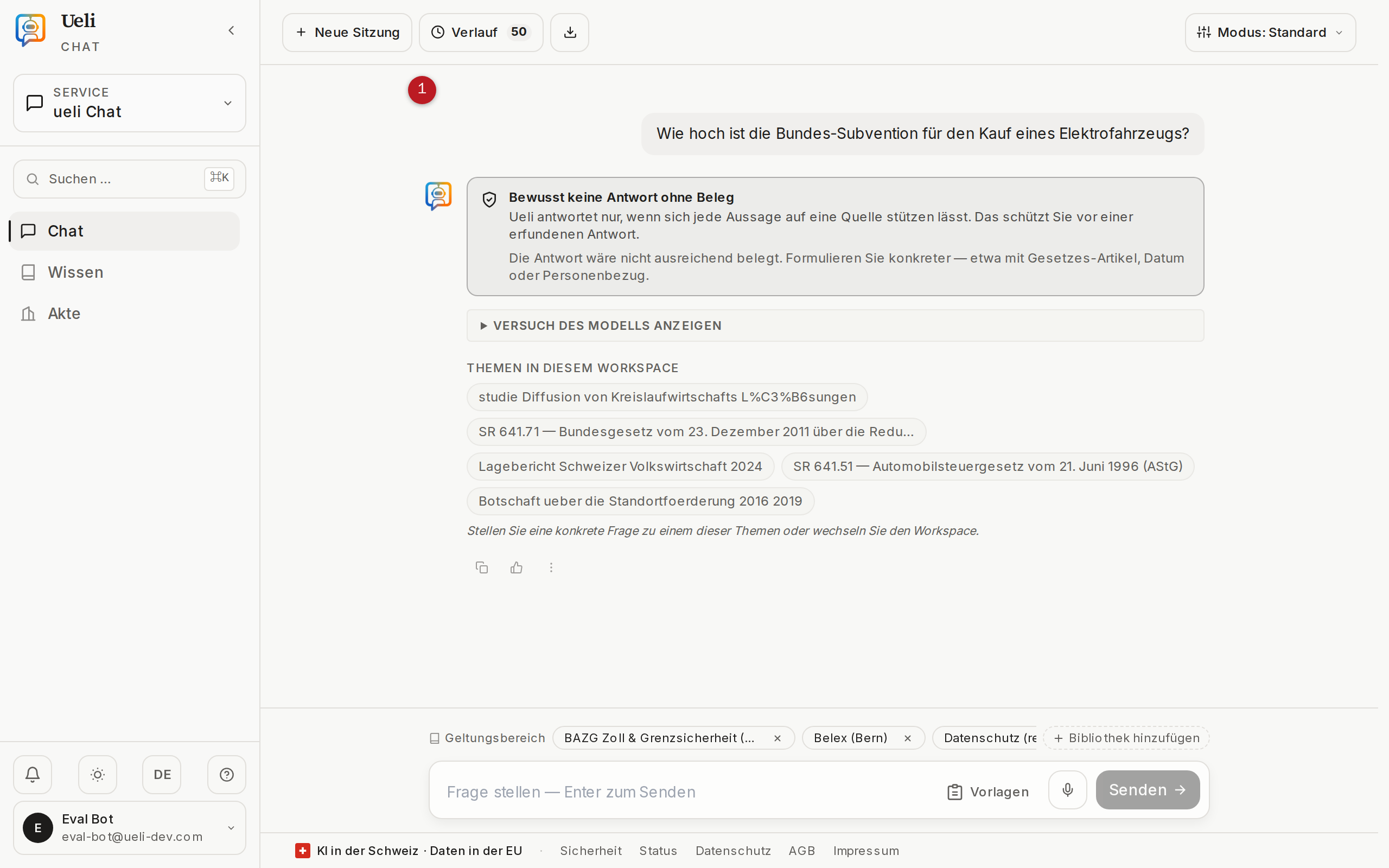
Typical reasons and what you can do:
| Message | Meaning and next step |
|---|---|
| «I can't find a reliable source for this in the selected knowledge.» | The selected libraries do not cover the question. Ask a narrower question or broaden the scope. |
| «The answer would not be sufficiently supported.» | Be more specific — for example with a legal article, date or personal reference. |
| «The statement could not be traced to a source.» | Ask the question more precisely or narrow the topic. |
| «The fact check rejected the answer.» | A statement did not appear in the document in that form. Rephrase the question; the refusal is the protective layer against invented content. |
5Working with answers
A good answer is only the beginning. This chapter shows how to copy, export, listen to, rate, develop and share answers.
5.1 Actions below every answer
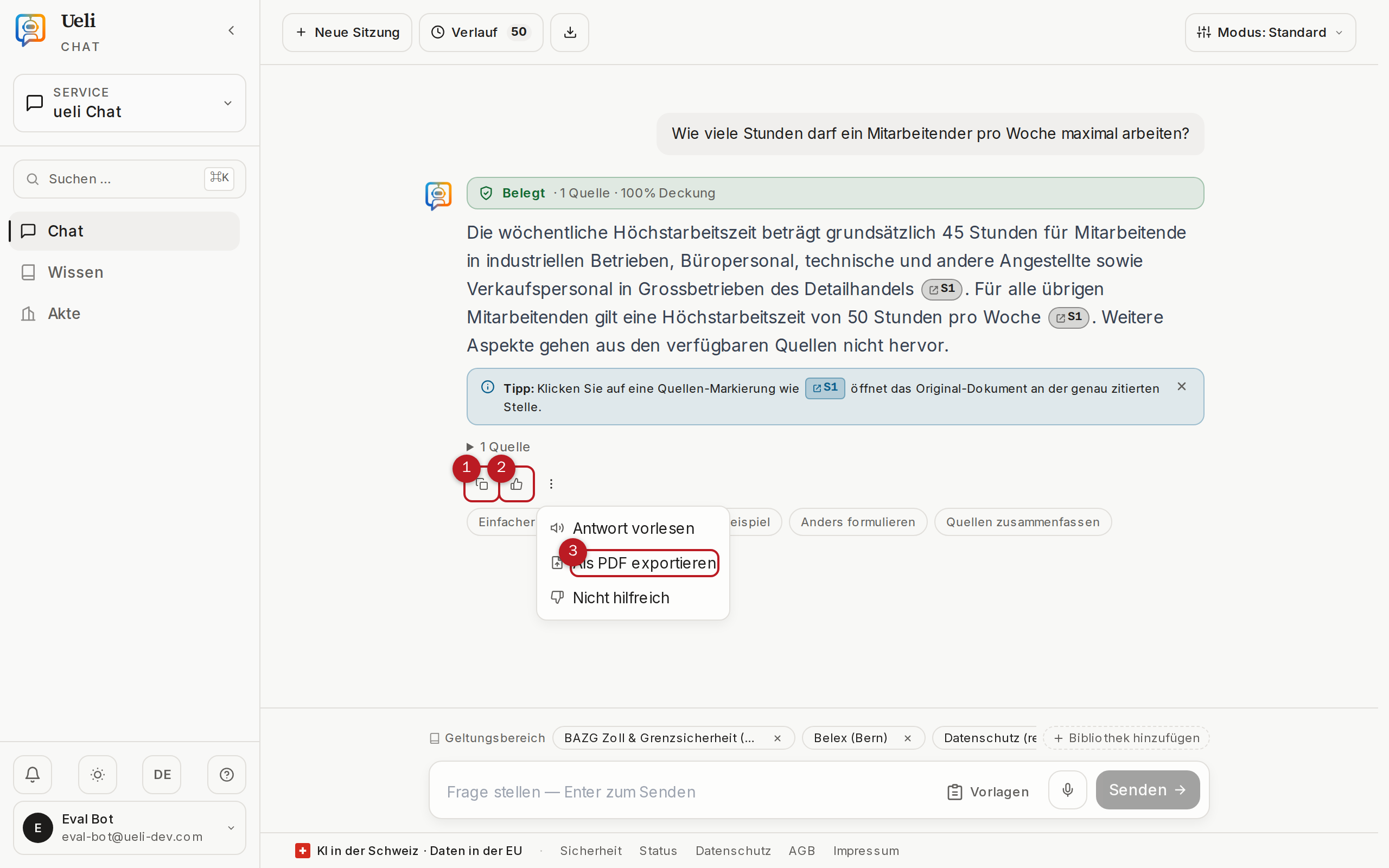
Below every answer you will find an action bar; further commands sit behind «More actions»:
- Copy answer — copies the answer to the clipboard, with source citations if desired.
- Read answer aloud — reads the answer out via speech output; «Stop reading aloud» ends the output. Requires a browser with speech output.
- Export as PDF — creates a file-ready PDF of the answer (section 5.2).
- Feedback — Helpful or Not helpful, optionally with a comment. The feedback is evaluated to improve sources and configuration; a comment is particularly valuable with negative ratings.
- Remove message — removes a question together with its answer from the history.
5.2 PDF export for the case file
- Below the answer, click «Export as PDF».
- Optionally enter a file no. and a note for the letterhead.
- Choose whether the cited sources with original excerpt should be included.
- Start the export — the PDF is downloaded and additionally filed in the case file under Exports (chapter 6).
5.3 Follow-up questions
Simply keep typing in the same session — Ueli understands that a follow-up question refers to the conversation so far:
- You: «How many days of holiday is an employee entitled to?»
- Ueli: «At least 4 weeks per year [S1].»
- You: «And in the case of illness?» — the reference to the holiday topic is retained.
If the topic changes completely, start a fresh conversation without history with «New session» (chapter 6).
5.4 Sharing a session
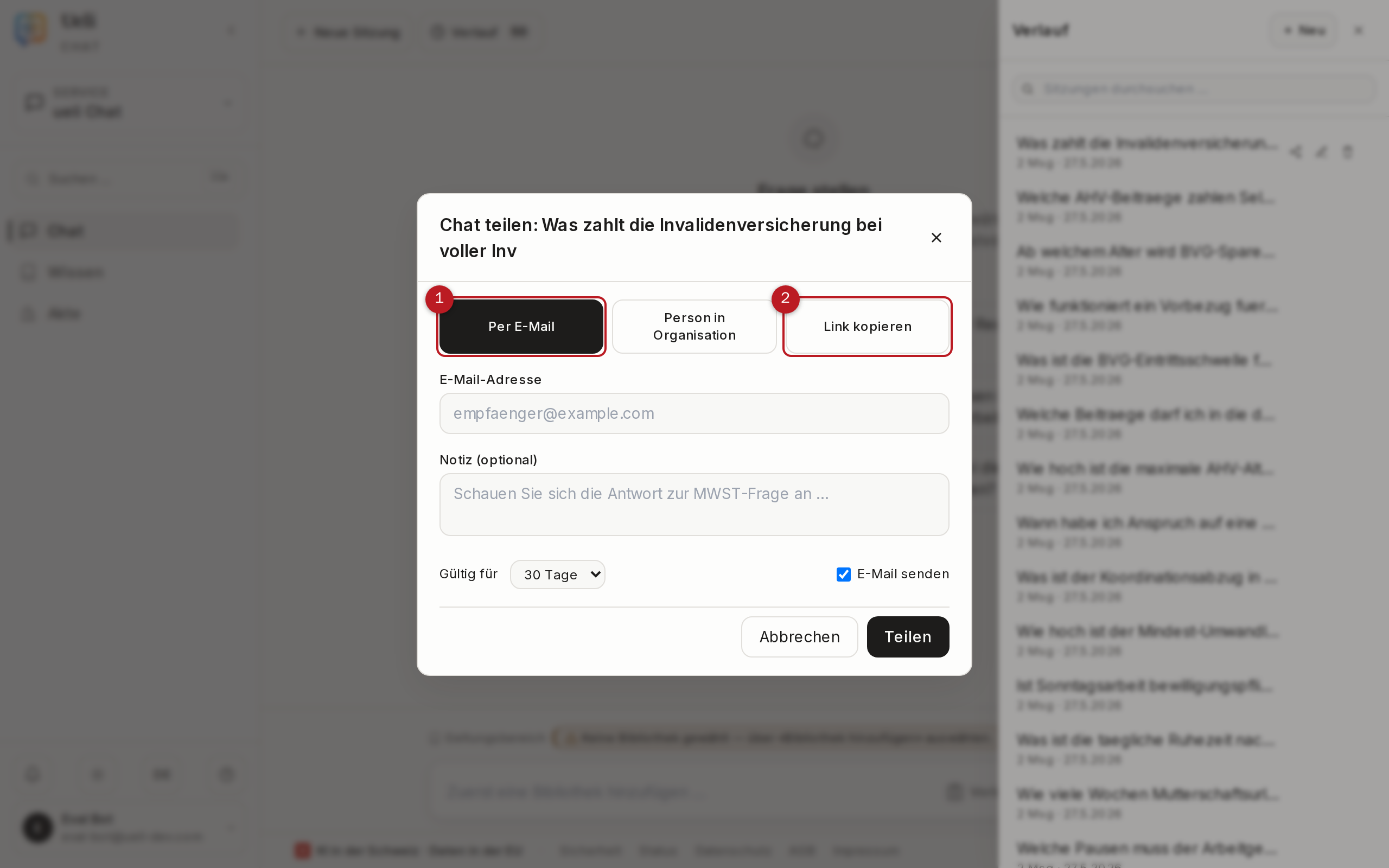
You pass on an entire session in a targeted way via «Share session» (in the session history or via the share button in the chat):
- Choose the channel: By email, Person in organisation (search by name or email) or Copy link.
- Set the validity: 7 days, 30 days, 90 days or 1 year.
- Optionally add a note and confirm with «Share».
Shared sessions are read-only — anyone with the link can see the chat but cannot change anything. Every share shows its view count and expiry date and can be revoked at any time: directly in the share dialog under «Active shares of this conversation» or collectively under Account → Shared content (chapter 10).
5.5 Markdown export
Via the «Export» button you download the entire session as a Markdown file — with all questions, answers, sources and the source coverage. The format is suitable for archiving and for further processing in other programs; for formal purposes, use the PDF export (section 5.2).
6Sessions & case file
Sessions are your chat histories; the case file is your organised collection of citations, templates, notes and exports. Together they form your working memory on the platform.
6.1 The session history
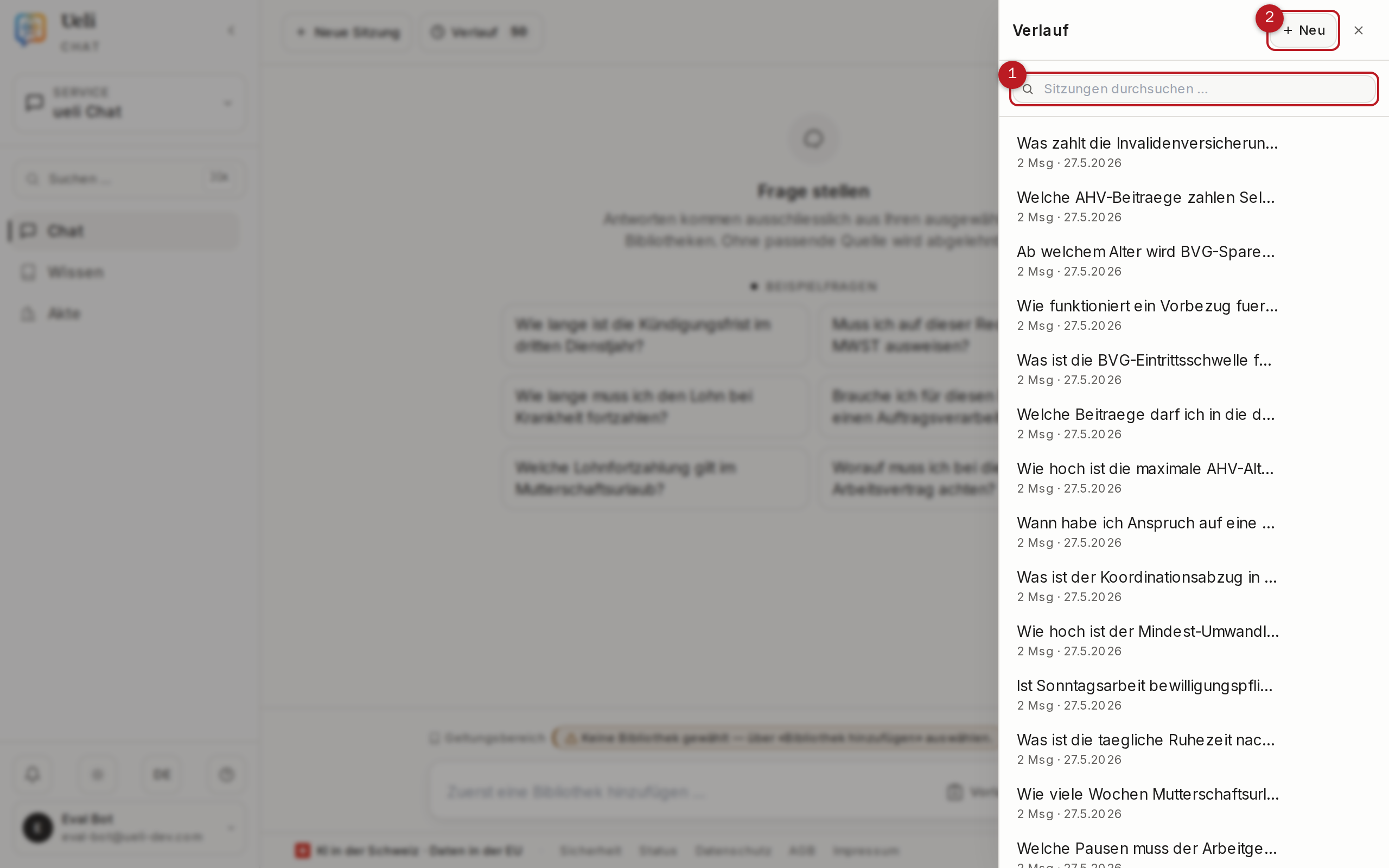
Via «Session history» you open the list of your previous sessions. There you can:
- Search — the «Search sessions …» field filters by title.
- Open — clicking a session continues the conversation; follow-up questions know the previous context.
- «Rename session» — give sessions meaningful titles so you can find them again.
- «Delete session» — removes the conversation permanently; for safety you are asked to confirm twice.
- «Share session» — see chapter 5.4.
- «New session» — starts a fresh conversation. The first question creates the session automatically.
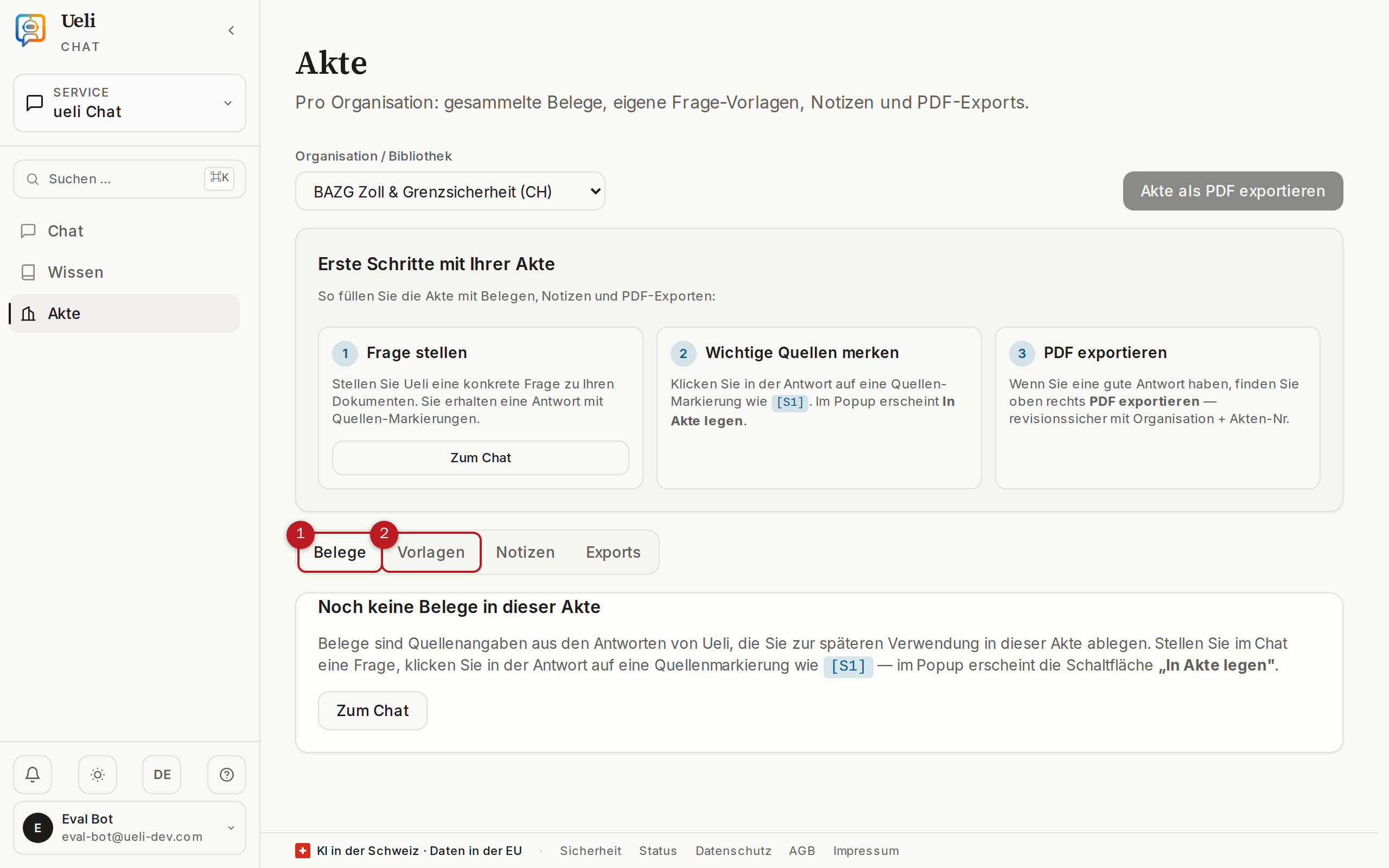
6.2 The case file
The case file (page /akte) collects, per workspace, everything you want to keep from your research. Choose the workspace at the top; below it, four tabs organise the content:
| Tab | Content |
|---|---|
| Citations | Source passages you saved in the source viewer with «Add to file» — each with its location and an optional note. «Remove citation» deletes only the case-file entry; the original source remains untouched. |
| Templates | Your reusable question templates for the chat (chapter 3.4). With «+ New template» you create a title and text with placeholders. Organisation-wide templates can only be created by admins. |
| Notes | Your comments on sources — captured in the source viewer or directly here. |
| Exports | The history of your PDF exports with file no. and status — downloadable again at any time. |
With «Export dossier as PDF» you create a collective PDF of the entire citation collection, including your organisation and file no. in the letterhead — suitable for filing in your own dossier or for passing on.
7Knowledge & libraries
Under Knowledge you manage the foundation of all answers: libraries. A library (also called a workspace) is a collection of documents on a topic.
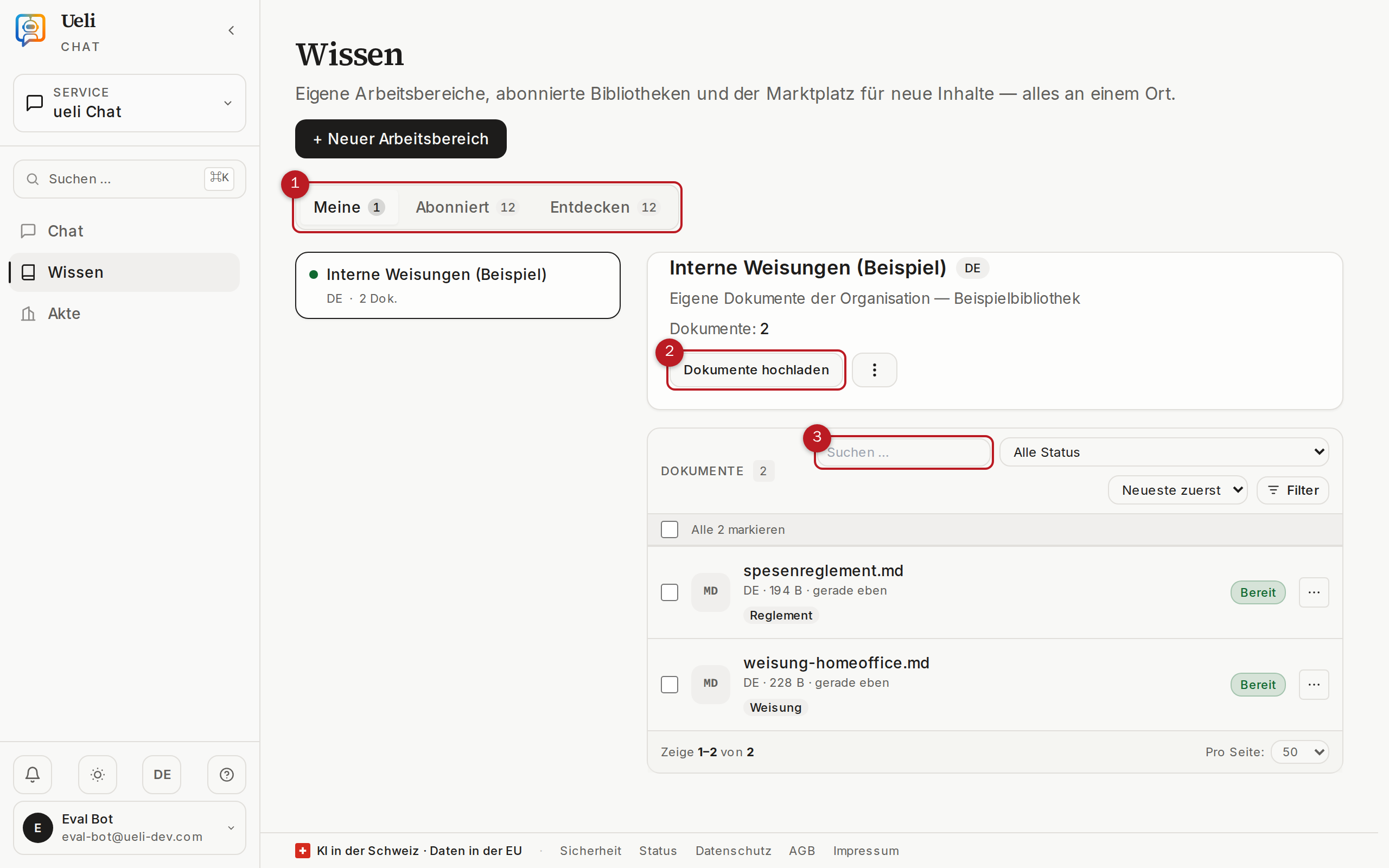
7.1 The three tabs: Mine, Subscribed, Discover
| Tab | Content |
|---|---|
| Mine | Your organisation’s own libraries — this is where you upload documents and maintain the content. |
| Subscribed | Libraries that are available to you without you maintaining them — in particular the public platform libraries. |
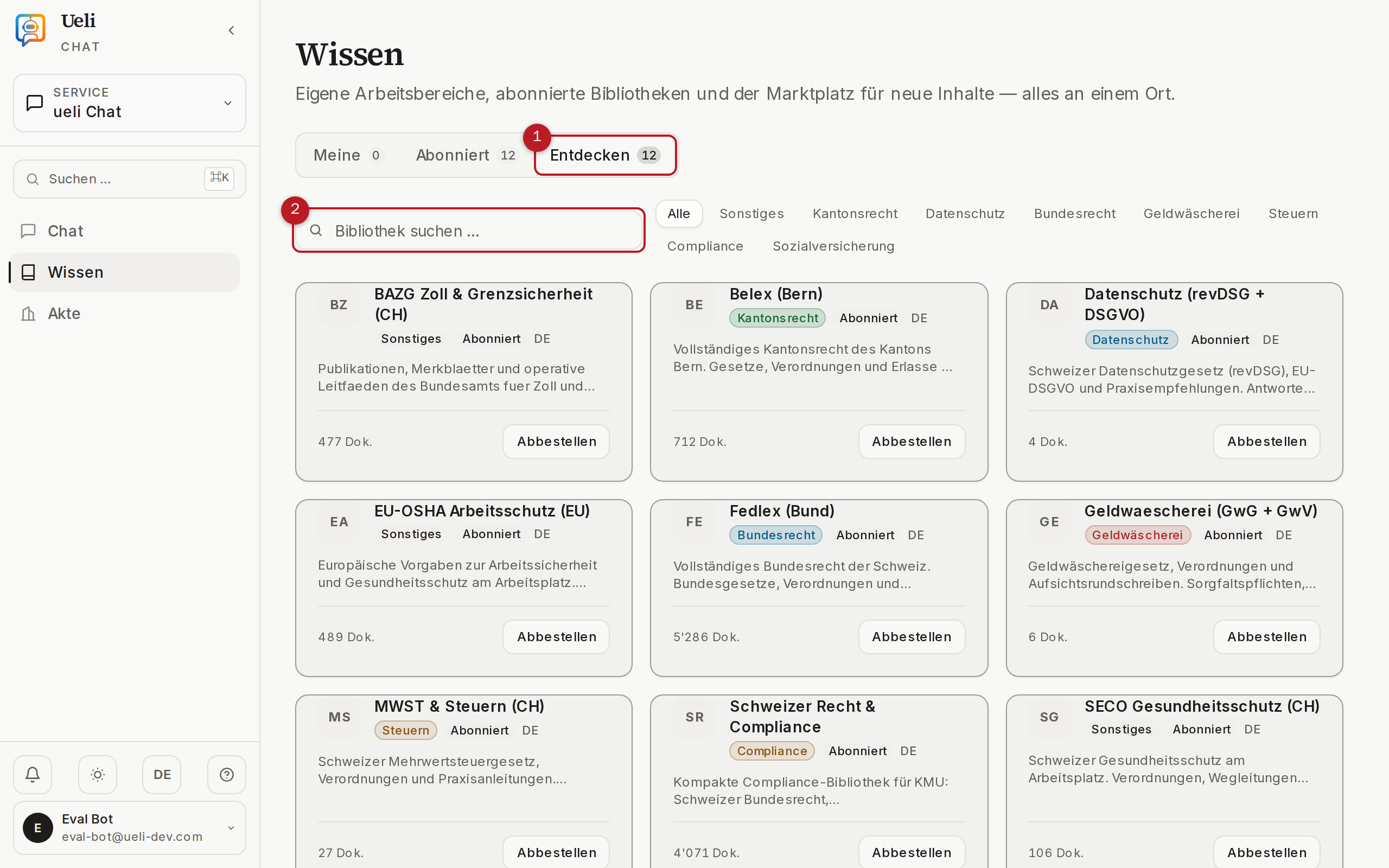
| Discover | The catalogue of all available libraries for browsing, searching and subscribing. |
7.2 Public platform libraries
With account approval, every organisation and every individual automatically receives read access to all public knowledge libraries on the platform. You do not need to subscribe to anything or pay anything — the libraries are immediately available for the scope in the chat. There are currently 12 libraries with more than 20,000 documents, including:
| Library | Content |
|---|---|
| Fedlex / Bundesrecht | Swiss federal law in full text — including the Code of Obligations (CO), Civil Code (CC), Criminal Code (SCC), Federal Constitution (Cst.) and Civil Procedure Code (CPC), each with all articles. |
| Belex | Cantonal legislation collection (Bern). |
| SECO | Publications of the State Secretariat for Economic Affairs, including labour and health protection. |
| EU-OSHA | European Agency for Safety and Health at Work. |
| Sozialversicherungen | Leaflets and fundamentals on AHV, IV, EO, EL and other branches of Swiss social insurance. |
| MWST & Steuern | Swiss VAT practice and fundamentals. |
| Datenschutz | The revFADP and accompanying material. |
| GwG | The Anti-Money Laundering Act and its implementation. |
| Swiss-Compliance | Compliance collection for Swiss companies. |
7.3 Creating your own library
From the Member (edit) role you can create your own libraries:
- On the Mine tab, click «New workspace».
- Give it a meaningful name (for example «Supplier T&Cs 2026») and add a short description.
- Choose the language of the documents — it influences how the content is processed. If in doubt, German.
- Confirm with «Create» — after that you can upload documents right away.
7.4 Uploading documents
The «Upload documents» button opens the upload centre of the selected library:
- Drag files into the drop area or choose them via the file dialog. Multiple files at once are possible.
- Optionally assign tags (comma-separated, for example «Contract, 2024, Client A») and a document date — both make filtering easier later on.
- Alternatively, use the URL import: enter the full address (with
https://) — the page is loaded, the text extracted and created as a document. Suitable for public web pages and articles; not suitable for pages behind a login. - Under «Replace existing file» you upload a new version of an existing document — the old version is removed from the search.
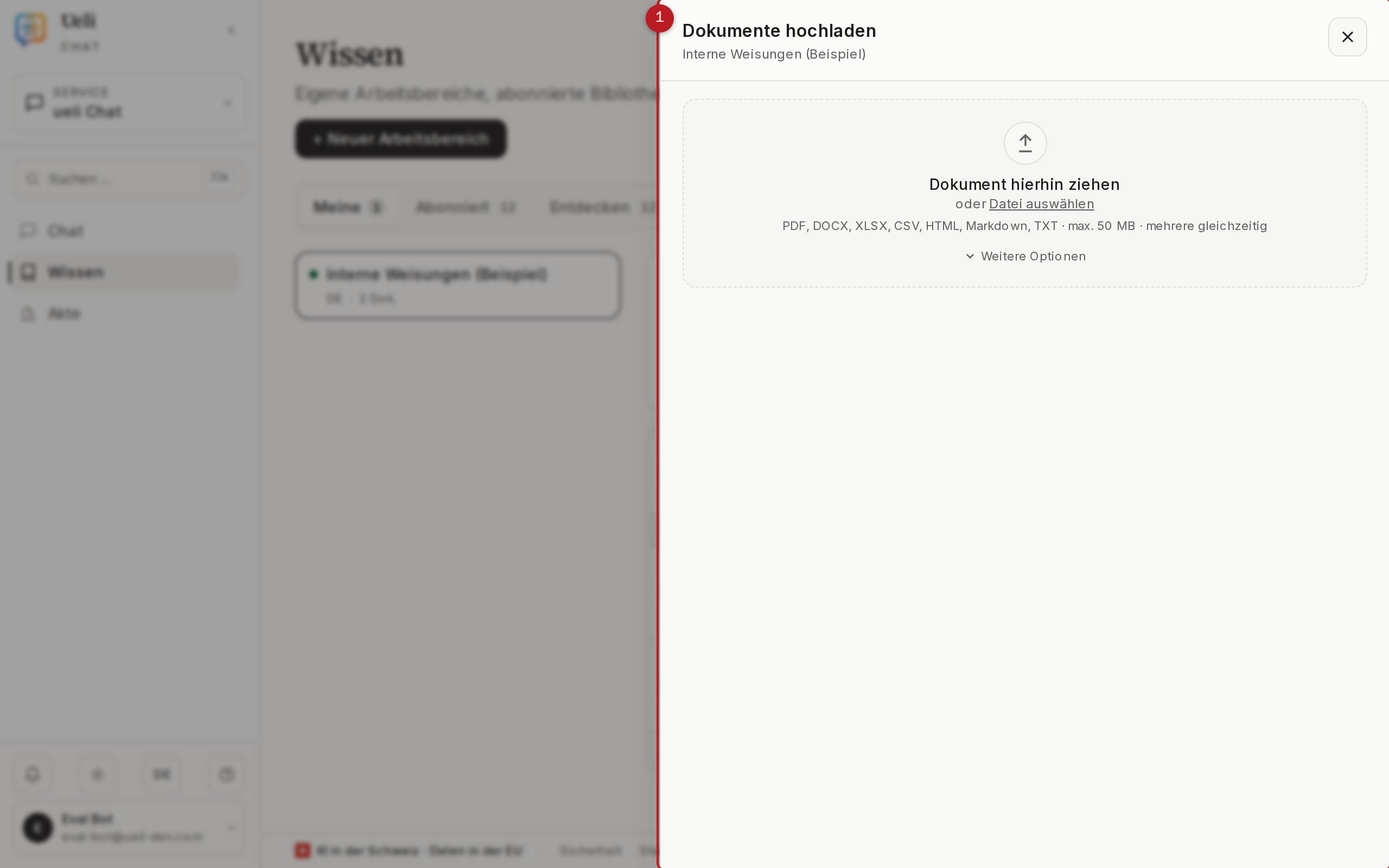
Supported formats: PDF (including scans, via text recognition), DOCX, XLSX, CSV, HTML, Markdown and TXT — up to 50 MB per file.
7.5 Document list, filters and status
The library’s document list shows every entry with its status. Only the «Ready» status means: searchable in the chat.
| Status | Meaning |
|---|---|
| Uploaded / Queued | The file is stored and waiting for processing. |
| Parsing / Parsed | The text is extracted (with text recognition for scans) and split into meaningful sections. |
| Indexing … | The search index is being built. |
| Ready | The document is available in the chat. |
| Error / Problem | Processing failed — show the details, re-upload if necessary or trigger a re-index. |
A normal 20-page PDF is ready in roughly 30 seconds to 2 minutes; scanned or very large documents take longer. Above the list you will find search, a status filter («All statuses», «Ready», «Errors» …) and sorting (newest, oldest, title A–Z, largest, by status). Tags are clickable and filter the list. For each document, the menu offers, among other things, Download, Edit tags & date and Delete.
7.6 Discovering and subscribing to libraries
On the Discover tab you browse the catalogue. The public platform libraries are already included for your account; you subscribe to additional offerings with «Subscribe». Where approval by the platform operator is required, the button is labelled «Request» — your request then appears with the status «Under review», and you are informed of the decision by email. Subscriptions can be cancelled again at any time; your own existing sessions are preserved.
7.7 Who may do what?
- Member (read): view libraries and use them in the chat.
- Member (edit): additionally create and edit libraries, upload and replace documents.
- Organisation admin and owner: additionally delete libraries.
8Specialist services
The specialist services are standalone modules for organisations with document-heavy workflows. They are not active automatically: the platform operator enables each module individually. Organisation admins submit the request via the service catalogue (chapter 11.3); once approved, the module appears in the service switcher.
8.1 Ueli Dokumente
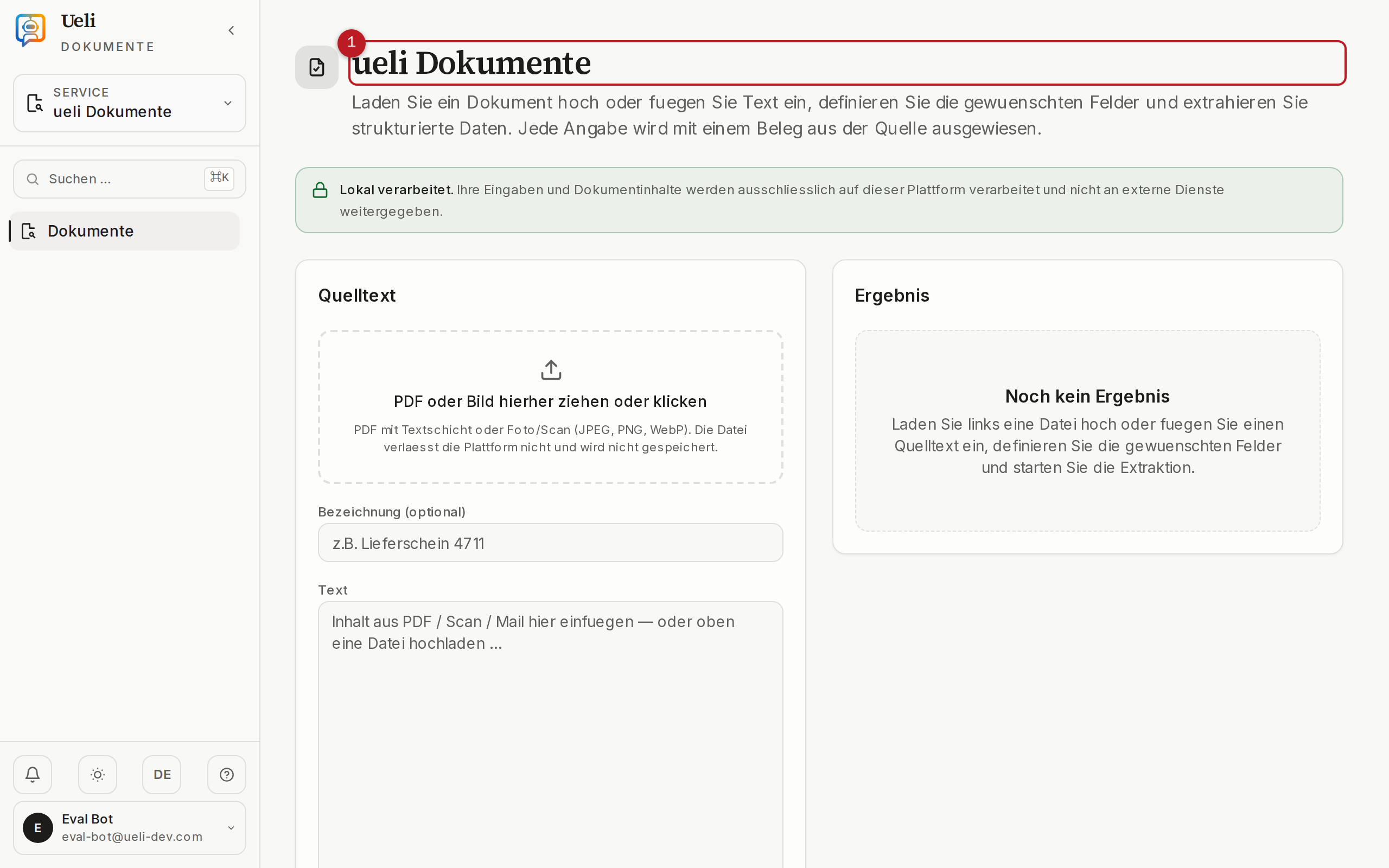
Ueli Dokumente automatically turns PDFs, scans and photos into verified, structured data — with human oversight. The module extracts defined fields (such as sender, amounts, deadlines) from free text and forms; every extracted value carries evidence pointing to its location and a confidence score. If evidence is missing, the entry is flagged for manual review instead of being adopted silently.
8.2 Ueli Fachauswertung
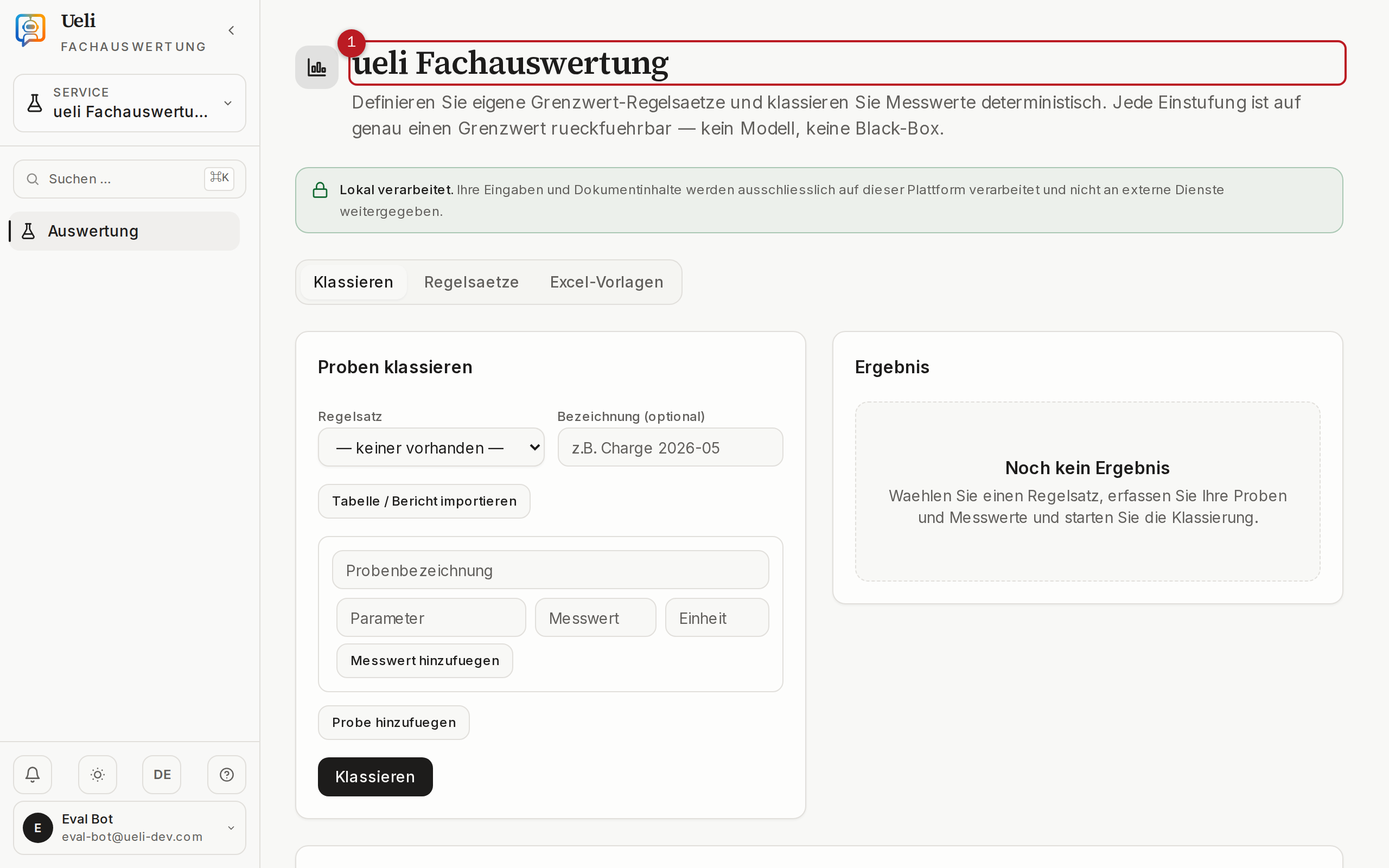
Ueli Fachauswertung evaluates technical and laboratory reports against your own thresholds and rules and classifies them traceably — every rating is backed by evidence and traceable to exactly one threshold in your rule set. Classification is deterministic, meaning identical inputs always produce identical results. Results can be exported as a PDF report with a checksum.
8.3 Ueli Berichte
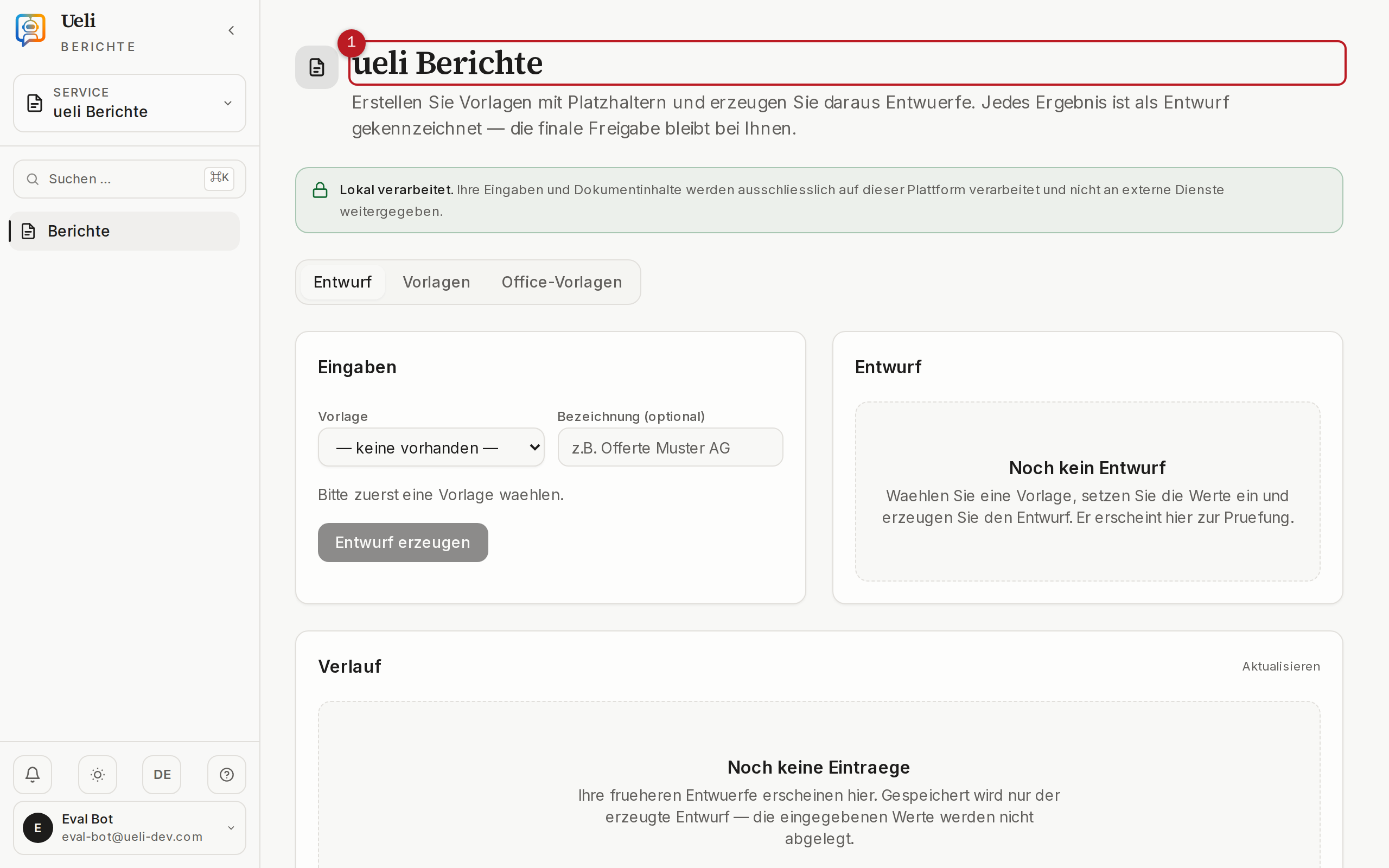
Ueli Berichte creates draft reports, quotes and minutes from your data and templates — with source citations, finalised by you. Templates contain placeholders and defined text blocks; every generated document is clearly marked as a draft until a person has reviewed and approved it. A job history documents every generation.
8.4 Ueli Text
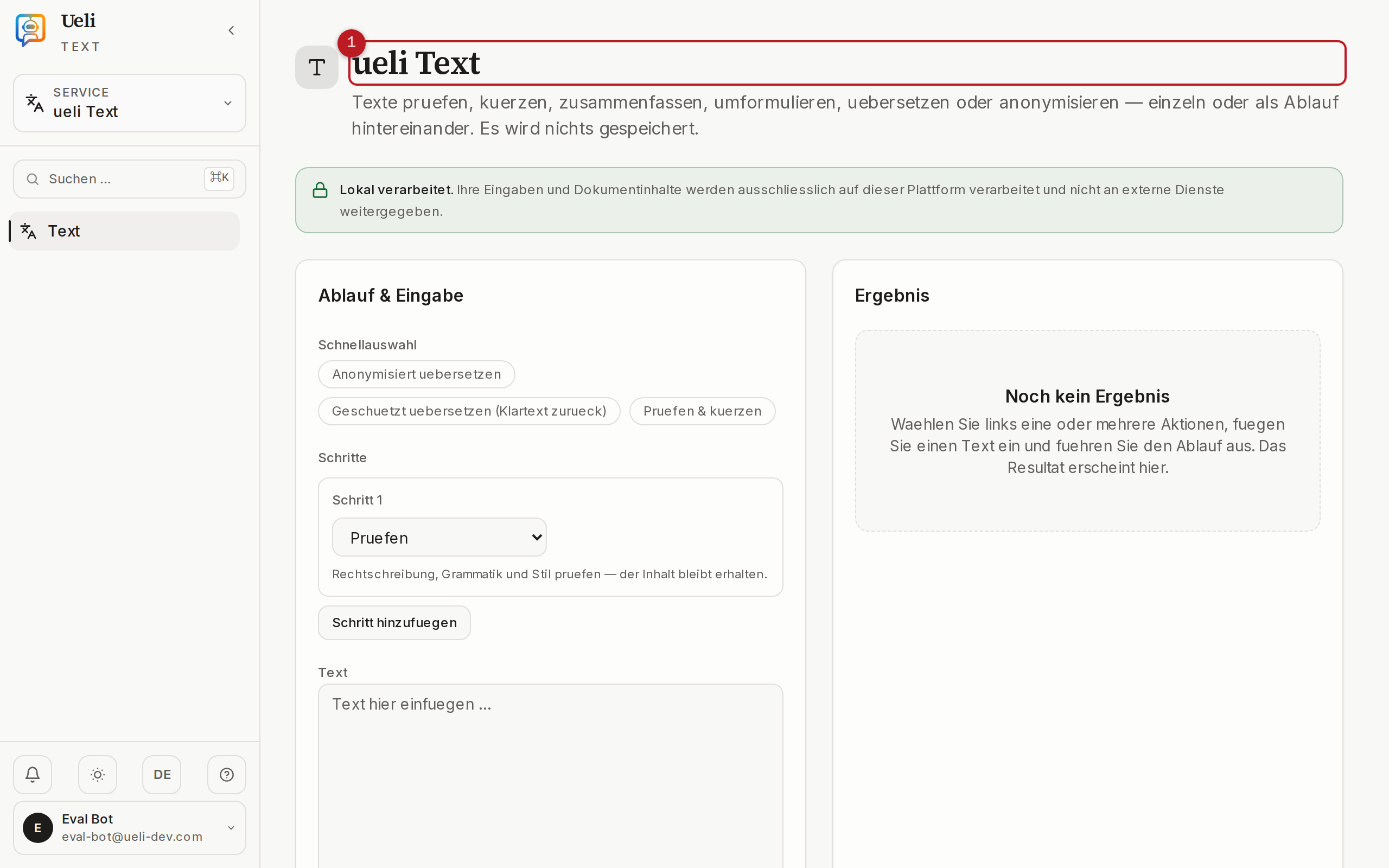
Ueli Text checks, shortens, translates and anonymises texts and transfers them into your templates. Typical uses: putting official letters into plain language, stripping personal data from texts before passing them on, or pouring raw text into your organisation’s format.
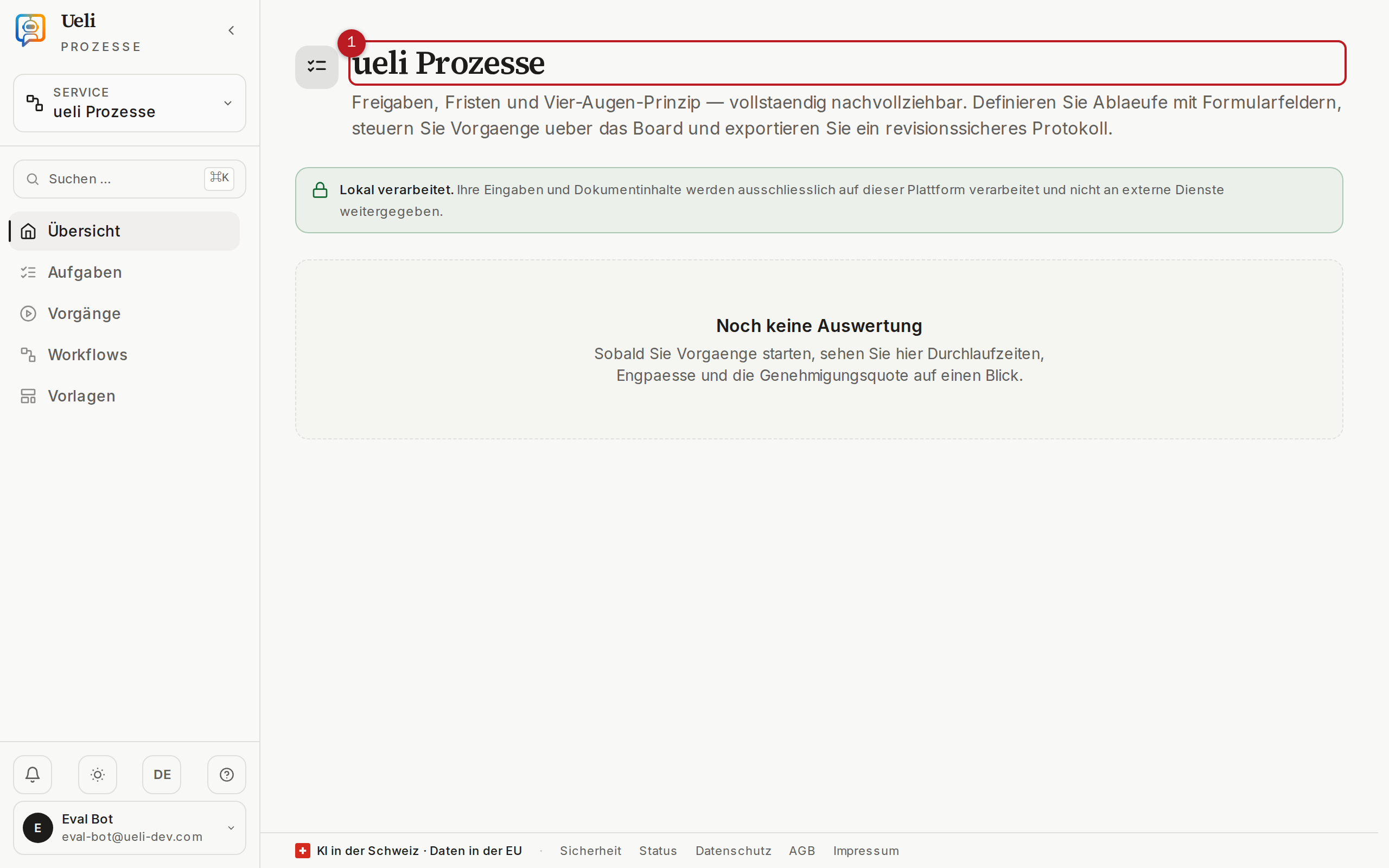
8.5 Ueli Prozesse
Ueli Prozesse automates recurring workflows such as expenses or approvals — with tasks, approval steps, deadlines and handover to your systems. Critical steps support the four-eyes principle (approval by a second person); every run produces a log. Ready-made workflow templates are available for, among others, file inspection, deadline and reminder management, objections and mandate opening.
9Pension & financial calculators
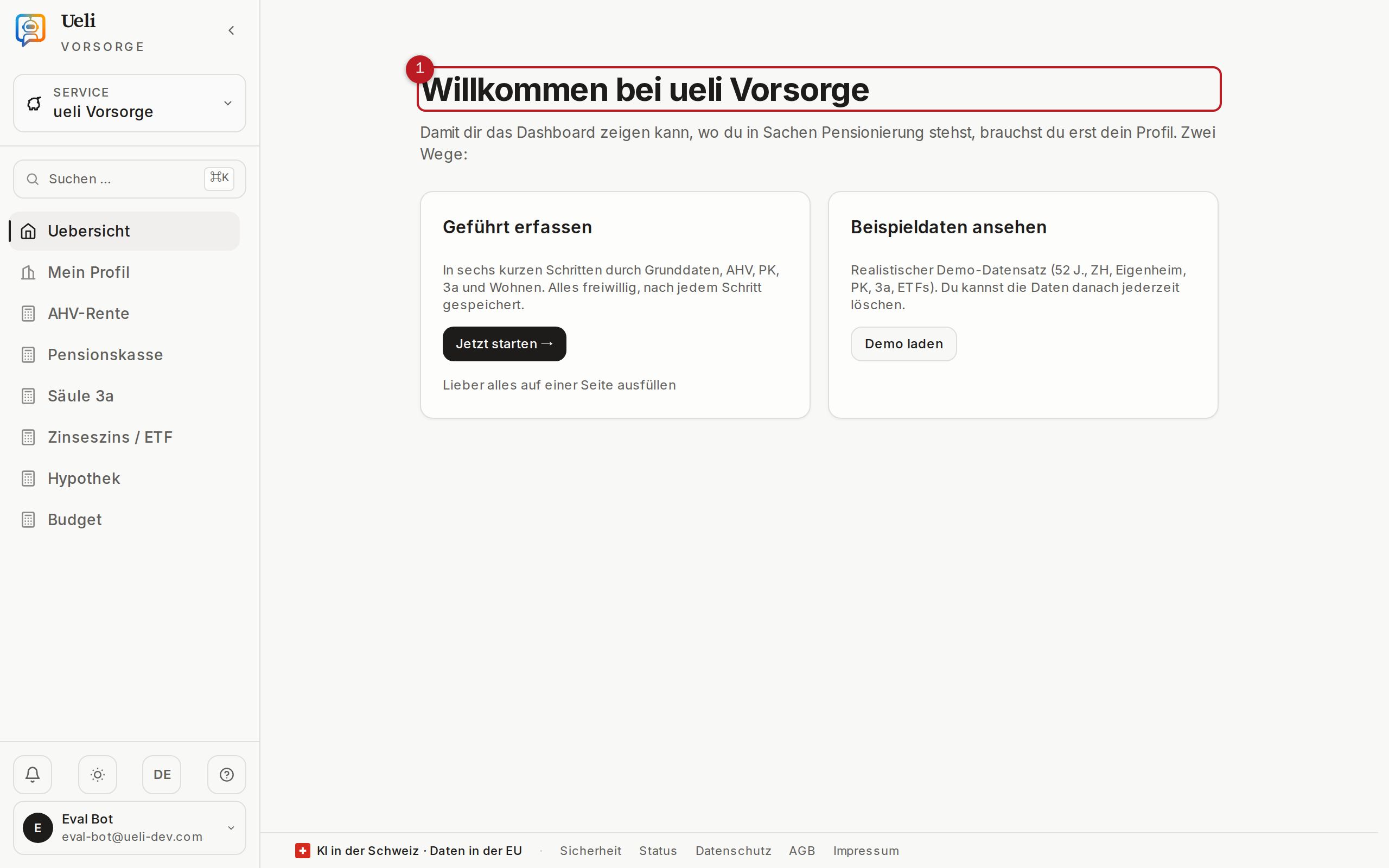
Ueli Vorsorge calculates your retirement situation across all three pillars (AHV, pension fund, pillar 3a), shows gaps and compares scenarios. All entries are saved continuously and are private — other members of your organisation cannot see them.
9.1 Dashboard
The dashboard bundles your key figures: pension projection (monthly, all sources, optionally including your partner), coverage ratio, wealth trajectory, detected gaps and suggested measures. Via «Pension file as PDF» you export the entire analysis as a document with a checksum. The metrics trend shows saved snapshots over time.
9.2 Guided start
The guided start at /vorsorge/start asks for the most important details in a few topic steps — every step can be skipped, nothing is mandatory. If you prefer to enter everything on one page, switch directly to the profile. To try things out, you can also load a demo data set.
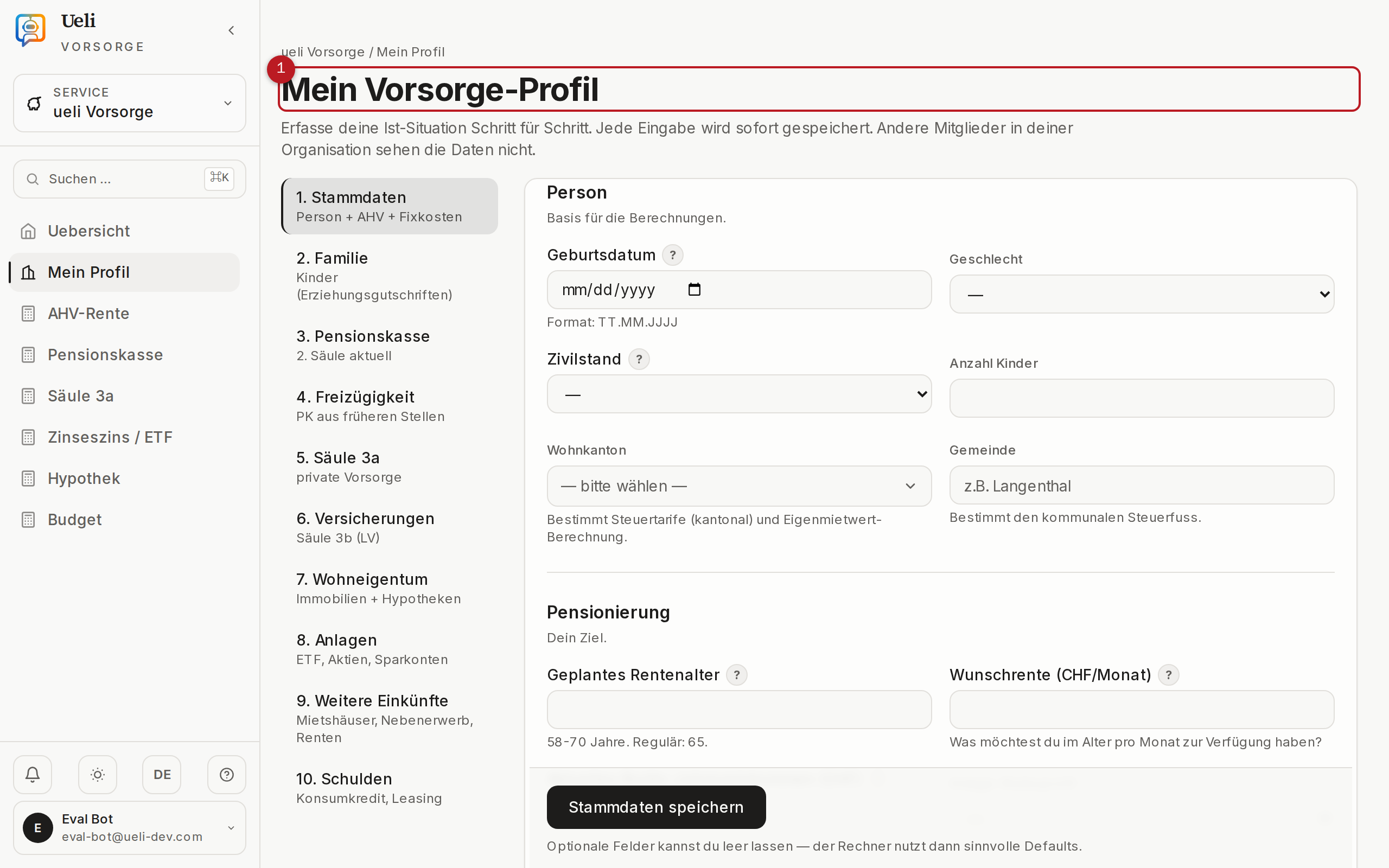
9.3 Profile
The pension profile organises your details into ten areas: master data, family, pension fund, vested benefits, pillar 3a, insurance, home ownership, investments, other income and debts. Two convenience features:
- Tax multiplier (optional): For more accurate tax calculations you can enter your cantonal, municipal and church tax multipliers. Empty fields are replaced by cantonal averages; the link «Where do I find my tax multiplier?» leads to the official source.
- Document import: Upload a salary statement, pension-fund statement or 3a certificate as a PDF. Ueli reads out the figures and suggests them — nothing is applied automatically; you review and confirm every value. The document is not stored permanently.
9.4 Scenarios
Under Scenarios you compare up to four «what-if» variants side by side — such as retiring at 63, 65 or 67, a pension-fund buy-in or a lump-sum withdrawal. The starting point is always the status quo from your profile values; the lifetime trajectory shows the effects up to age 90. You can export the comparison as a PDF.
9.5 The financial calculators
Alongside the pension plan, standalone calculators are available for specific individual questions. Every calculator explains its assumptions and shows its calculation methods openly.
| Calculator | Answers the question |
|---|---|
| AHV pension | How high will your AHV pension be under the simplified scale 44 — and what is the effect of contribution gaps? |
| AHV drawing age | Is it worth drawing your AHV pension early (up to 2 years, reduced for life) or deferring it (up to 5 years)? |
| Pension fund: annuity or lump sum | How do your pension-fund retirement savings develop, and how do annuity, lump sum and mixed forms compare? |
| Pension-fund buy-in | How much tax does a voluntary pension-fund buy-in save, and how do you stagger it optimally? |
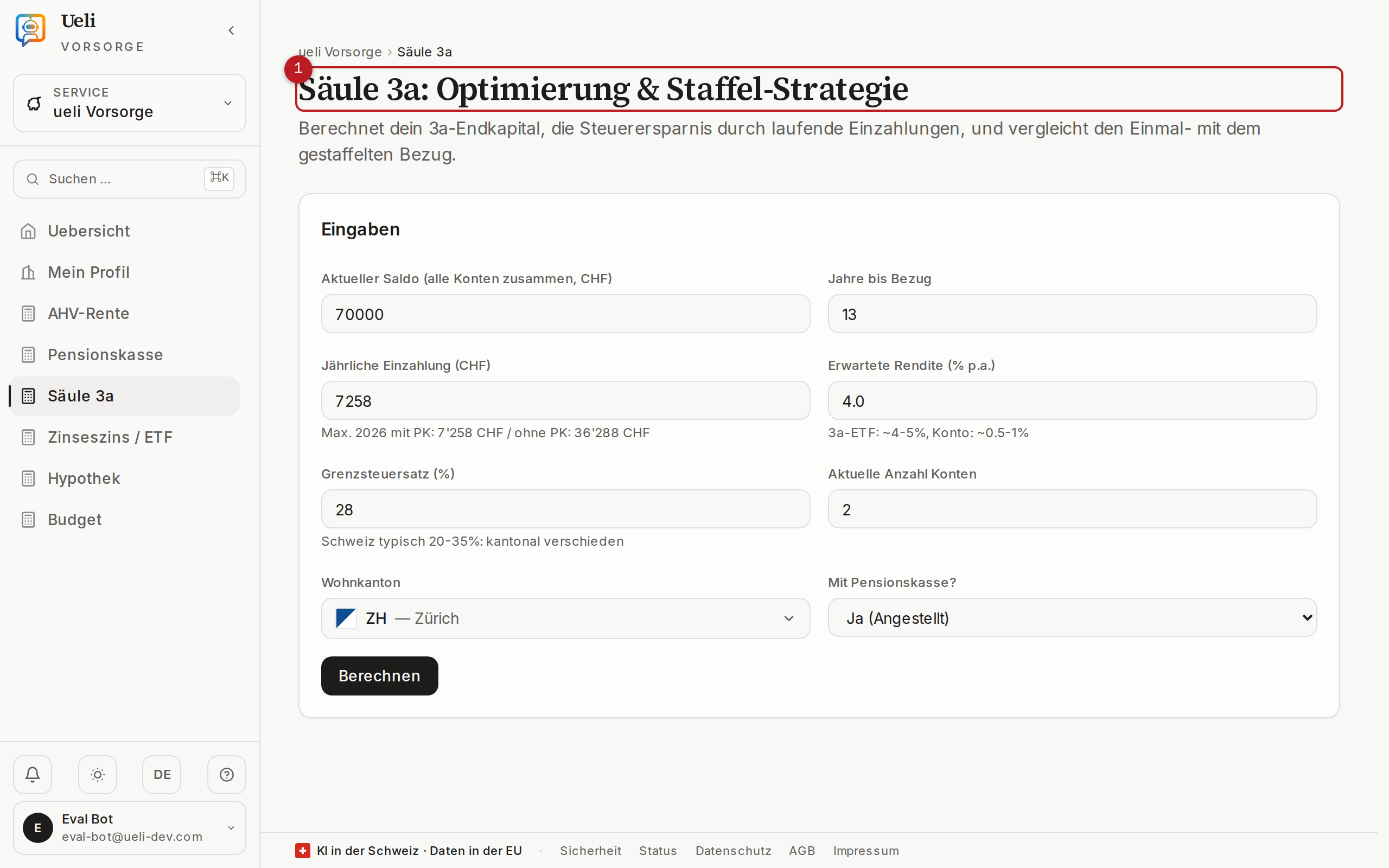
| Pillar 3a | What final 3a capital and what tax savings can you achieve — and what does the staggering strategy with several accounts bring? |
| Lump-sum withdrawal | How do you spread lump-sum withdrawals from your pension fund and pillar 3a over several years to break the tax progression? |
| Home affordability | Is your income sufficient, under the banks’ rules, to buy a property? |
| Amortising a mortgage | Amortise directly or indirectly via pillar 3a — which is smarter for tax purposes? |
| Rent or buy | Where do you stand financially after a few years — as a tenant or as an owner? |
| Housing cost comparison | What do two housing situations cost in a running monthly comparison? |
| Heat pump | Does replacing your oil or gas heating pay off — with subsidies, tax deduction and operating costs? |
| Photovoltaics | What does a PV system on your own roof deliver — with the one-off subsidy, tax deduction and electricity yield? |
| Purchasing power | What will your money still be worth after inflation in 10, 20 or 30 years? |
| Real return | What remains of your return in real terms after inflation and costs? |
| Investment costs | How much do fund fees (TER) erode your final wealth over the years? |
| Savings goal | How much do you need to save each month to reach a target amount? |
| Financial independence | When will your wealth be large enough to cover your expenses sustainably from withdrawals? |
| Emergency fund | How large should your liquid reserve for the unexpected be? |
| Capital drawdown | How long will your wealth last in retirement at a given withdrawal rate? |
| Net salary | What remains of your gross salary after social insurance contributions, the pension-fund deduction and, where applicable, withholding tax? |
| Instalment loan | What does a consumer loan really cost over its term? |
| Debt payoff | Snowball or avalanche method — in which order do you pay off several debts most cheaply? |
| Car total costs | What does your car really cost per month and per kilometre — including depreciation? |
| Car: leasing or buying | Leasing, cash purchase or financing — which is cheapest over the period of use? |
| Health-insurance deductible | Which deductible level is cheapest given your expected healthcare costs? |
| EL check | Are you likely to be entitled to supplementary benefits to AHV/IV? |
| Risk check | How do you stand financially in the event of incapacity to work, death or the need for care? |
10Account & security
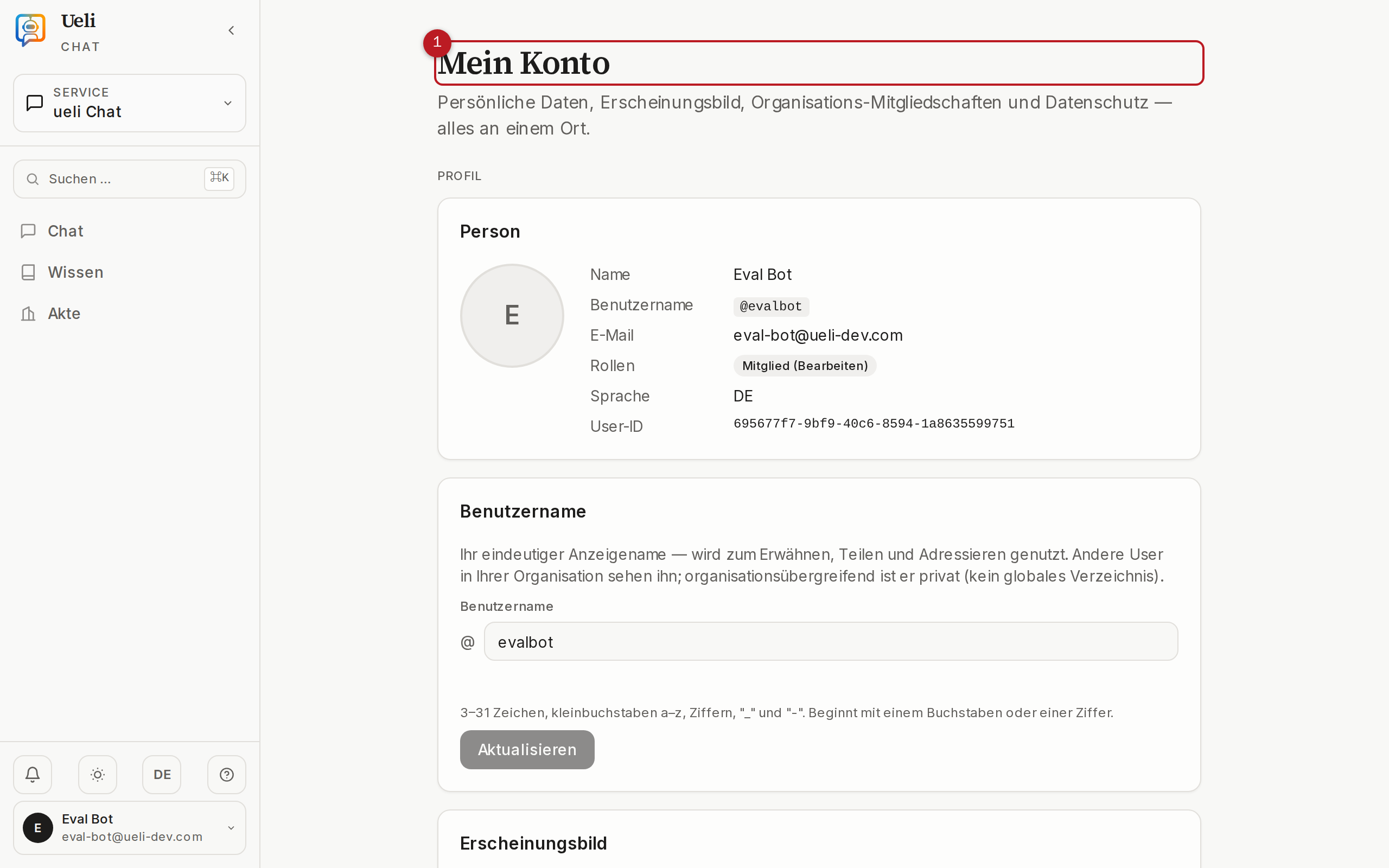
Under My account you manage your profile, security and your data. The page is organised into the groups Profile, Security and Account & data.
10.1 Profile
- Name and avatar: change your display name, upload or replace your profile picture.
- Username: unique short name (3–31 characters,
a–z,0–9,_,-); availability is checked as you type. You can use it to sign in. - Language: German, French, Italian or English.
- Appearance: Light, Dark or System.
10.2 Changing your password
Under «Change password» you enter your current password and the new one twice. Rules: at least 12 characters, a mix of upper and lower case, at least one digit. If you have forgotten your password, use «Forgot password?» on the sign-in page — you will receive a link by email.
10.3 Two-factor authentication
The «Two-factor authentication» card shows the status of your second factors and links to the security console (account management in a separate window), where you carry out the setup:
- Authenticator app — time-based codes (TOTP), for example with a common authenticator app.
- Passkey / security key — WebAuthn with fingerprint, facial recognition or a hardware key. Recommended.
After the setup, update the status with «Refresh status». Organisations can make two-factor authentication mandatory for all members.
10.4 Active sessions and sign-in history
- Active sessions shows your current sign-in with device, IP and time. Only one active sign-in is allowed per account — a new login automatically signs out older devices. Via «End» you close a session manually.
- The sign-in history lists sign-ins, failed sign-in attempts, sign-outs and password changes. Check it if anything seems suspicious to you.
10.5 API keys
- Assign a name (for example «CI pipeline») and click «Create key».
- The key is shown exactly once — copy it immediately and store it safely. Afterwards, only the name prefix remains visible.
- Revoke keys you no longer need — they become invalid immediately.
10.6 Shared content
Under «Shared content» you see all sessions you have shared — each share with its type (person, email or link), status (Active, Expiring soon, Expired, Revoked), view count and expiry date. This is where you revoke shares centrally; the link becomes invalid immediately.
10.7 Data export and deleting your account
- Data export: Request a ZIP file with your data — master data, sessions and messages, citations and notes as well as your activity entries. With this, Ueli fulfils the right to information under revFADP Art. 25.
- Delete account: After confirming twice, the account is locked and permanently deleted after a 30-day grace period (revFADP Art. 32). Contributions in shared conversations are anonymised. If you are the last owner of an organisation, appoint a successor first.
10.8 Privacy at a glance
- Ueli is a Swiss platform; AI processing takes place sovereignly on the platform’s own infrastructure — without passing data to outside providers.
- Your data is stored GDPR-compliant in the EU and handled in accordance with the revised Swiss Federal Act on Data Protection (revFADP).
- Organisations are strictly separated from one another; the separation is enforced technically at database level.
- IP addresses are truncated after 24 hours and deleted after 30 days.
- Security-relevant events are recorded in a tamper-protected log.
11Managing your organisation
11.1 Organisation master data
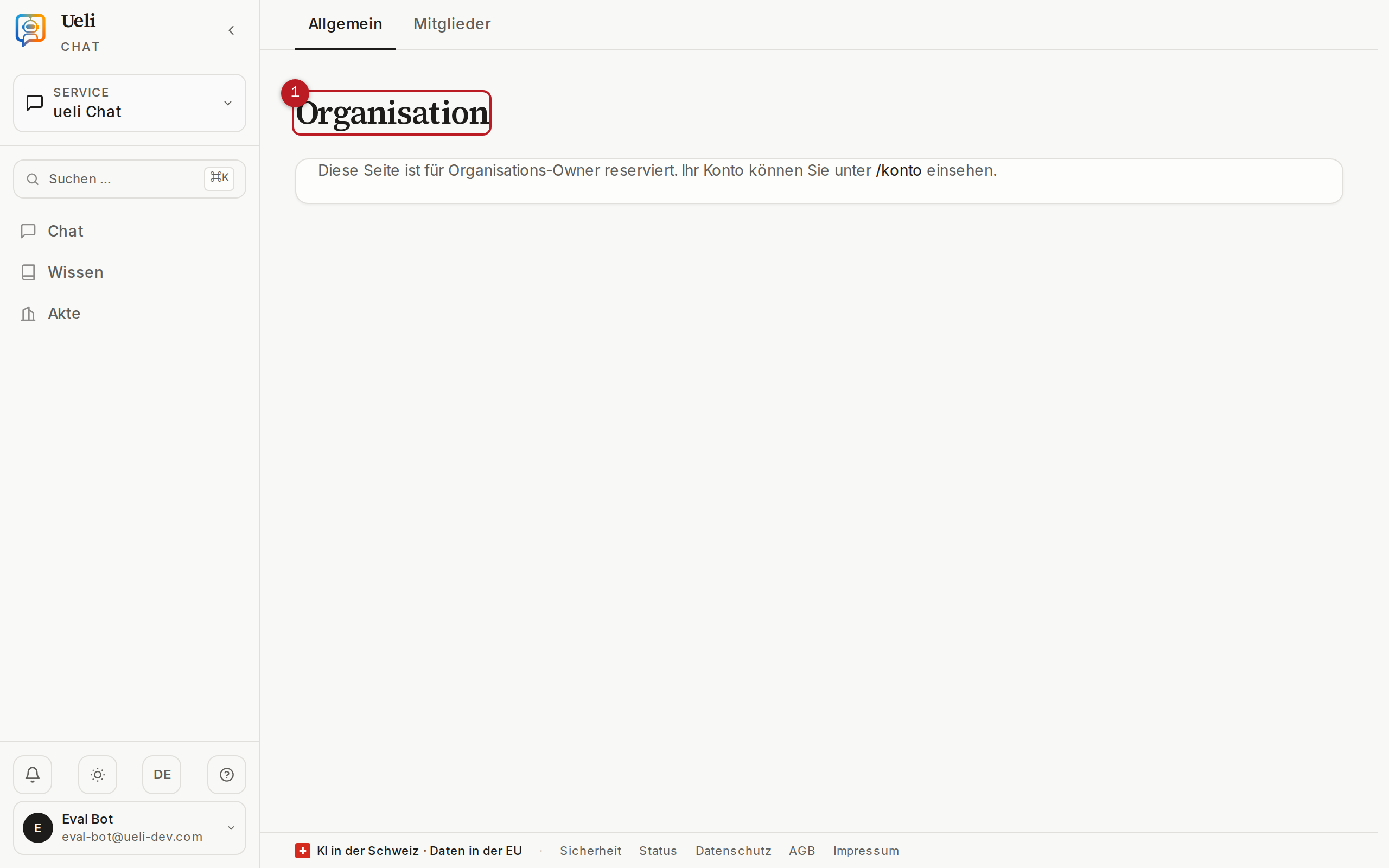
The Organisation page shows your organisation’s name, account type, plan and statistics. This is also where you manage organisation-wide security settings — such as the anonymisation requirement (enforces PII anonymization in all of the organisation’s chat requests) and the two-factor requirement for all members.
11.2 Inviting members and managing roles
- Open Organisation → Members (or Team).
- Click «Invite by email», enter the email address and choose the role: Member (read), Member (edit) or Organisation admin.
- The person receives an invitation link by email. Until their first sign-in they appear in the list with the status «Invitation open». Alternatively, an existing account can be assigned directly.
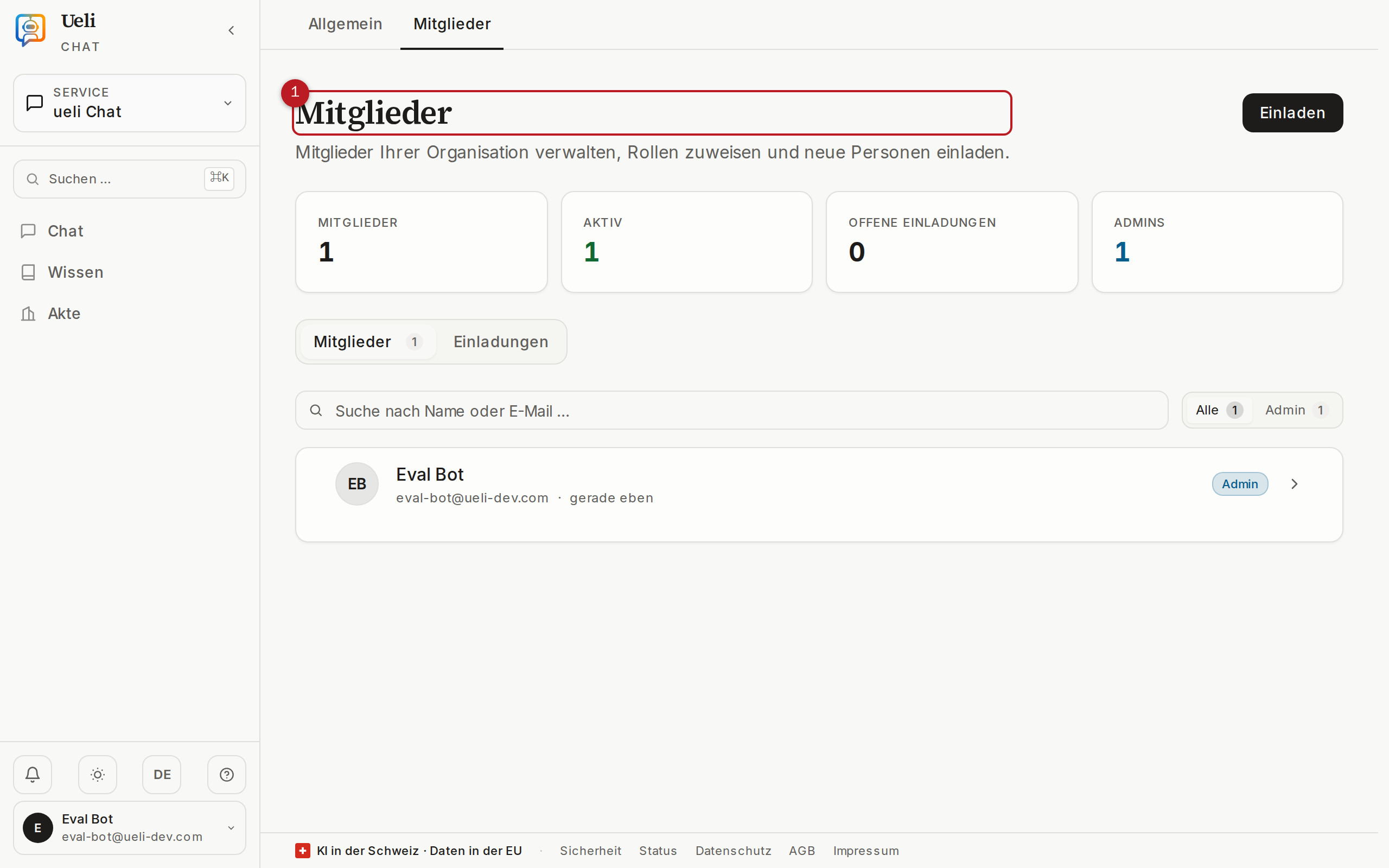
- Change role: via the menu next to the member. The Organisation owner role can only be assigned by an owner (or the platform operator).
- Remove: the person immediately loses access to the organisation; their contributions in conversations are kept in anonymised form (revFADP-compliant).
- Safeguards: you cannot demote or remove yourself if you are the last administering person — the organisation would otherwise be left without administration.
- «Last active» shows when a member last used the platform.
11.3 Service catalogue: requesting modules
In the service catalogue you see all of the platform’s modules with their status: Active, Available (requestable), Waiting (request under review) or Rejected. This is where you request additional modules — in particular the specialist services from chapter 8:
- Select the module and click «Request module», optionally with a reason.
- The platform operator reviews the request and enables the module or declines it.
- Once approved, the module appears in the service switcher for all members; you are informed by email.
11.4 Audit export
Under Audit log export you export your organisation’s events as a CSV — filterable by action and time period. The log is kept continuously and tamper-protected; the export is suitable as evidence for internal audits and for the record of processing activities under the revFADP and GDPR Art. 30 respectively.
12Reference
Reference section: role matrix, keyboard shortcuts, error messages and glossary.
12.1 Role matrix
| Action | Member (read) viewer | Member (edit) editor | Organisation admin tenant_admin | Owner tenant_owner |
|---|---|---|---|---|
| Use the chat, view sources, keep the case file | Yes | Yes | Yes | Yes |
| Use public platform libraries (read-only) | Yes | Yes | Yes | Yes |
| Upload documents, URL import, replace | — | Yes | Yes | Yes |
| Create and edit own libraries | — | Yes | Yes | Yes |
| Delete libraries and documents | — | — | Yes | Yes |
| Invite members, change roles, remove | — | — | Yes | Yes |
| Service catalogue: request modules | — | — | Yes | Yes |
| Audit export, organisation settings | — | — | Yes | Yes |
| Assign the owner role, change plan | — | — | — | Yes |
12.2 Keyboard shortcuts
| Action | Shortcut |
|---|---|
| Open command palette / quick search | Ctrl+K or Cmd+K |
| Send question | Enter |
| New line in the input field | Shift+Enter |
| Open templates (in the empty input field) | / |
| Close dialog, source viewer or panel | Esc |
| Open help panel | ? |
| Paste a screenshot into a feedback report | Ctrl/Cmd+V |
12.3 Error messages and what to do
Sign-in and permissions
| Message | Meaning and solution |
|---|---|
| «Session expired» | Your sign-in expired for security reasons. Sign in again — your work in progress is usually preserved. |
| «You were signed out because your account was signed in somewhere else.» | Only one active sign-in per account is allowed; a new login signed this device out. If that was not you: change your password immediately and inform your organisation owners. |
| «Set up two-factor» | Your organisation requires a second factor. Set it up in the security console (chapter 10.3). |
| «Access denied» | Your account is not authorised for this sign-in or action. Have your role checked (chapter 12.1). |
| Organisation suspended | The platform operator has temporarily suspended the organisation. Contact the operator. |
| «Page not found» when opening a module | The module is not enabled for your organisation. Request it via the service catalogue (chapter 11.3). |
Upload and documents
| Message | Meaning and solution |
|---|---|
| «Format … not allowed» | Only PDF, DOCX, XLSX, CSV, HTML, Markdown and TXT are accepted. Convert the file. |
| «The file is too large (max. 50 MB).» | Split or shrink the file. |
| «File validation failed» | The content does not match the file extension. Upload the original file in its true format. |
| Rejected by the malware check | The file is suspicious — do not use it. If the check is temporarily unavailable, the upload is declined as a precaution; try again later. |
| «Already exists — merged» | A file with identical content already exists; the upload was merged with it. No action needed. |
| «Processing failed» / «Error» status | The file could not be read (corrupted or password-protected) or indexing failed. Check the file, unlock it and upload it again; if it recurs, report it via the feedback button. |
| «An upload for ‹…› is still running» | One upload run at a time per library. Let the current run finish. |
| Document or storage limit reached | Your plan’s quota is used up. Delete documents or request a plan change (chapter 10, «Plan change»). |
Chat
| Message | Meaning and solution |
|---|---|
| «Please select at least one library first via ‹Add library›.» | The scope is empty. Add a library (chapter 3.1). |
| «No grounded answer» | Deliberate refusal — the question could not be grounded in the selected sources. Refine the question or broaden the scope (chapter 4.4). |
| «The fact check rejected the answer» | The second check found an unsupported statement. Rephrase the question. |
| Monthly budget reached | The month’s chat or processing quota is used up. Check your usage under Account → Usage & budget and request a plan change if needed. |
| «Libraries could not be loaded» | Usually an expired sign-in. Sign in again; otherwise try again later. |
| «A component of our system is temporarily unavailable.» | Temporary disruption. Check the status page /status and wait briefly — then send the request again. |
| Answer does not appear | With many libraries in the scope, an answer can take longer. After a minute: reload the browser tab — the answer is usually saved. |
Pension
| Message | Meaning and solution |
|---|---|
| «PDF only» on document import | The import reads PDF files only. Save the photo as a PDF first or enter the values manually. |
| Empty import suggestion | The PDF contains no readable text layer or no recognisable fields. Enter the values manually. |
| Validation error in the profile | A value is outside the permitted range. Correct the entry according to the field hint. |
/status is always worthwhile. It shows the platform’s operational state in real time. If that does not help, report the problem via the feedback button — ideally with a screenshot.12.4 Glossary
| Case file | The per-workspace collection point for citations, templates, notes and PDF exports (chapter 6). |
| Workspace / library | A collection of documents on a topic — the basis from which the chat answers. «Workspace» and «library» refer to the same concept. |
| Citation | A source passage saved to the case file — with its location and an optional note. |
| Beta operation | The current operating phase: accounts are approved manually by the platform operator on request. |
| Double opt-in | Two-stage confirmation of the access request: submit the form, then click the link in the confirmation email. |
| Fact check | A second, independent check of every answer against the sources. Unsupported answers are rejected rather than delivered. |
| Scope | The libraries selected for a chat session. Answers come only from them. |
| Multi-hop | An answer mode that automatically splits comparison and multi-step questions into sub-questions and answers them in parallel. |
| Organisation | Your unit on the platform (authority, law firm, company) with strictly separated data. Private individuals have a personal area. |
| PII anonymization | Replaces personal names, AHV numbers, IBANs and email addresses in requests with placeholders before they are processed. |
| Source coverage | The share of answer sentences with a valid source citation, given as a percentage. |
| Source marker [S1] | A statement’s reference to a specific document passage. Clicking it opens the source viewer. |
| Source viewer | A view of the original document with the passage highlighted in yellow, zoom, access to the original and case-file filing. |
| Role | A member’s permission level: Member (read), Member (edit), Organisation admin, Organisation owner (chapter 12.1). |
| Service / area | A module of the platform (Chat, Pension, specialist services …), reachable via the «Switch area» service switcher. |
| Session | A coherent chat conversation. Follow-up questions within the session know the previous context. |
| Verdict | The check result below every answer: «Grounded», «Partially grounded» or «No grounded answer». |
| Four-eyes principle | Approval of a step by a second person (in Ueli Prozesse). |
| Template | A reusable question building block with placeholders, managed in the case file. |
| Two-factor authentication | An additional sign-in factor alongside the password — an authenticator app or a passkey/security key. |
| revFADP / GDPR | The revised Swiss Federal Act on Data Protection and the European General Data Protection Regulation — the legal guard rails of Ueli’s data handling. |